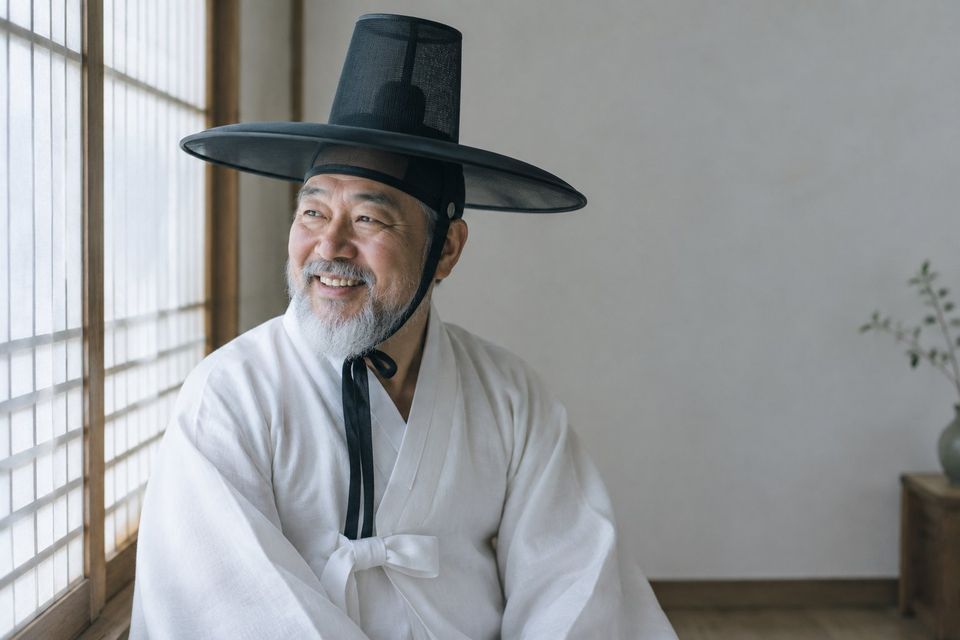
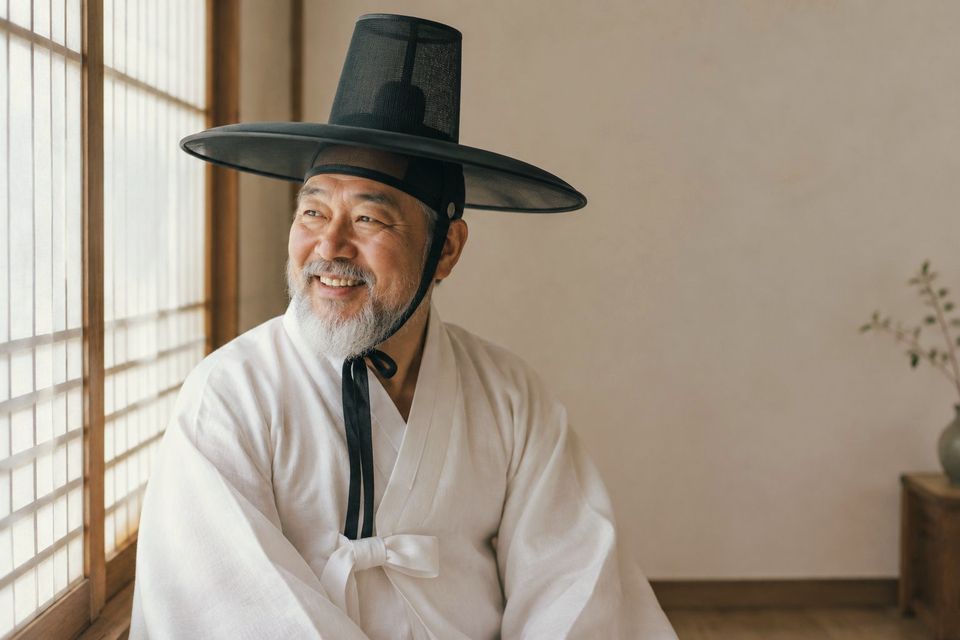
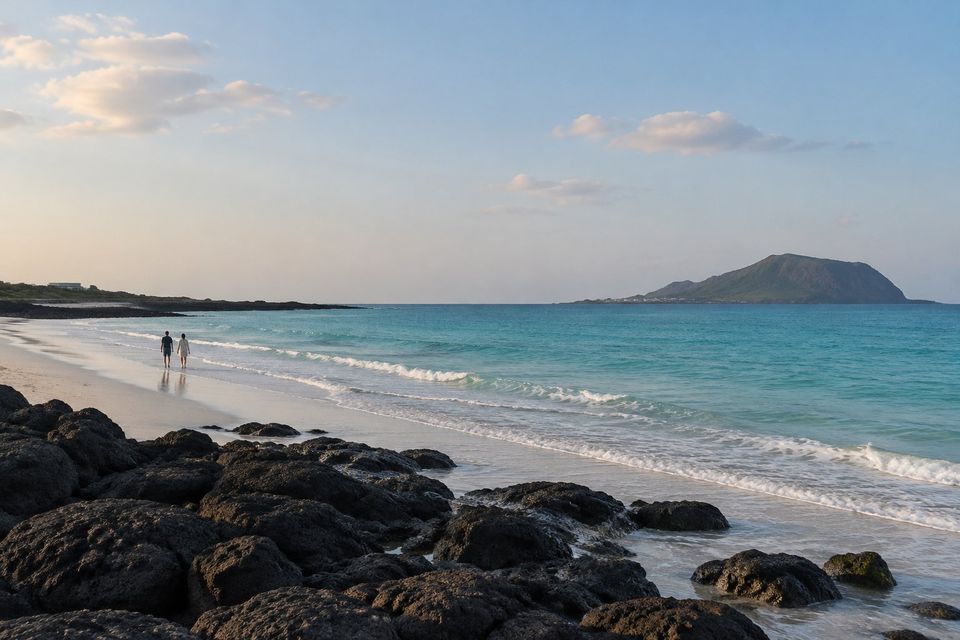
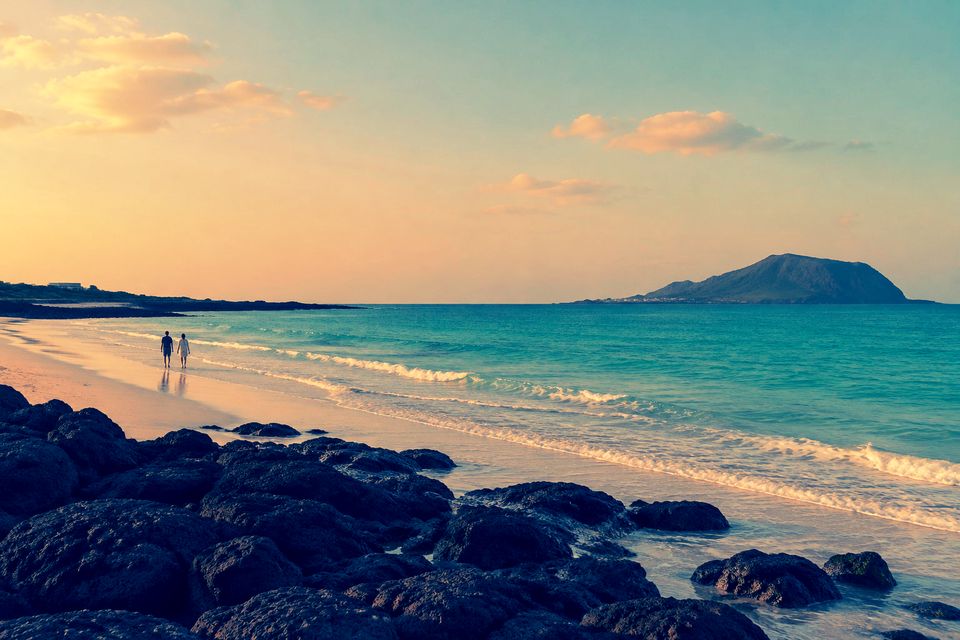
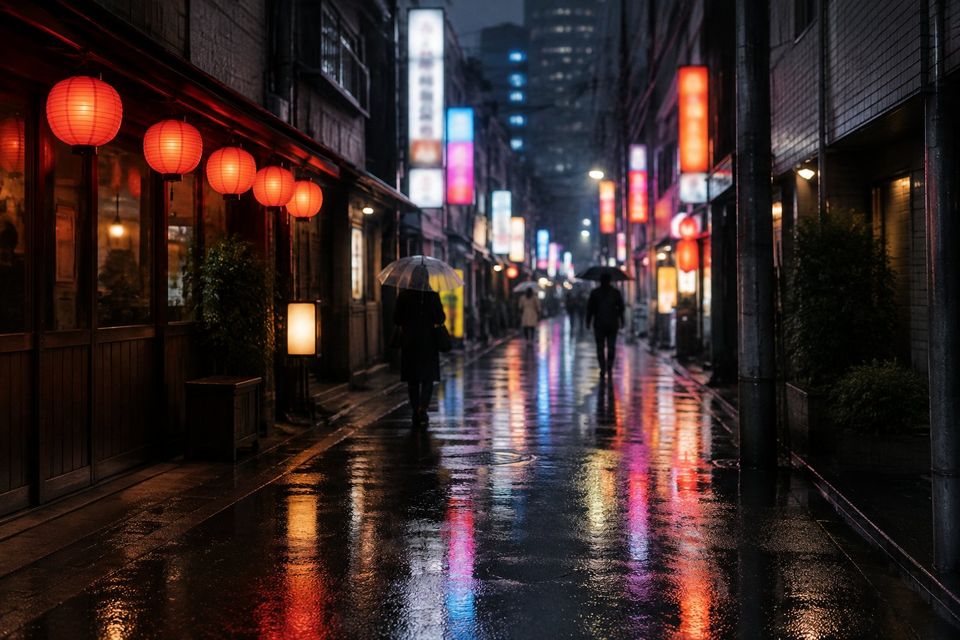
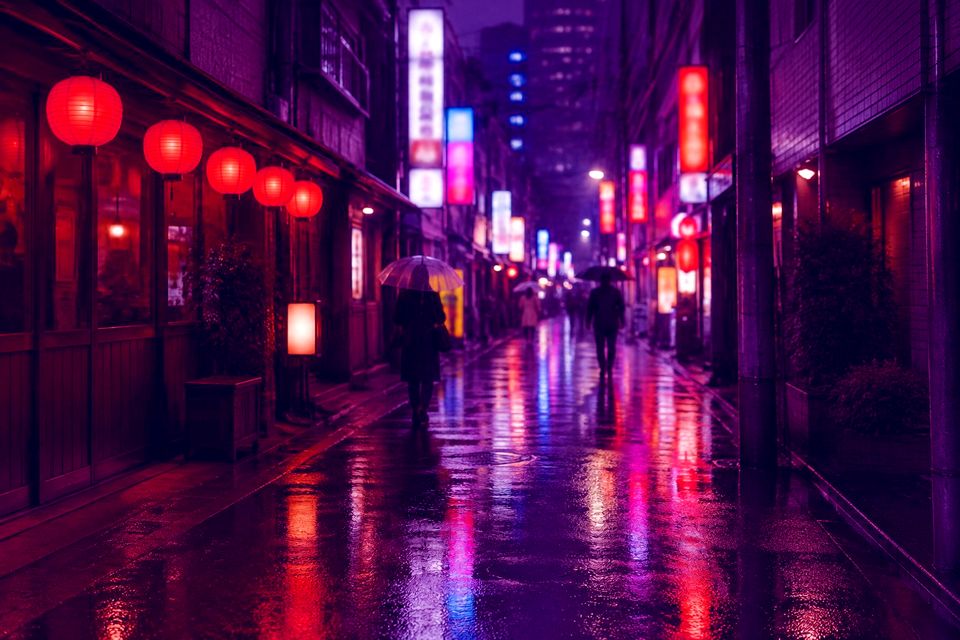
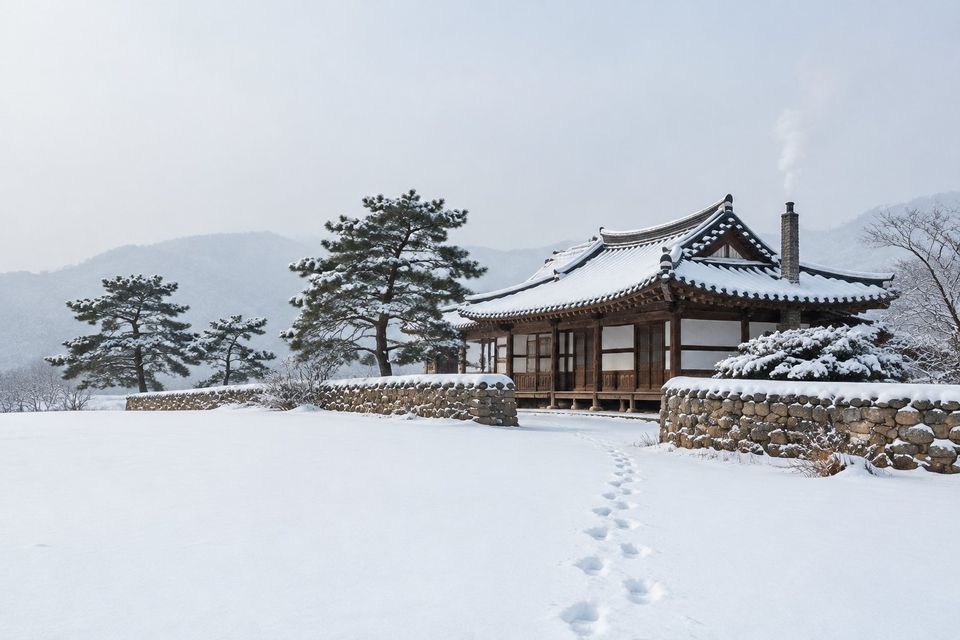
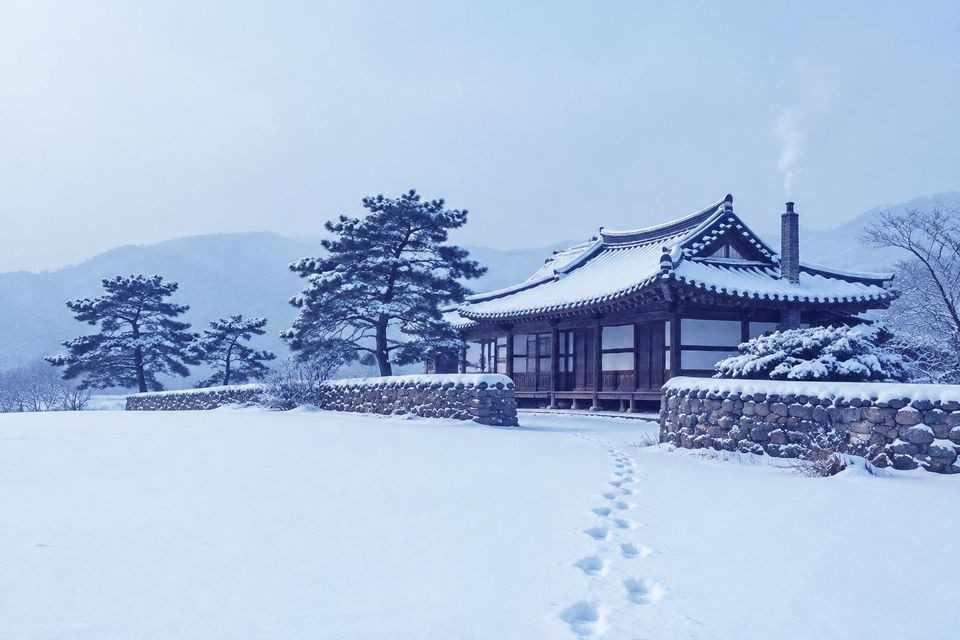
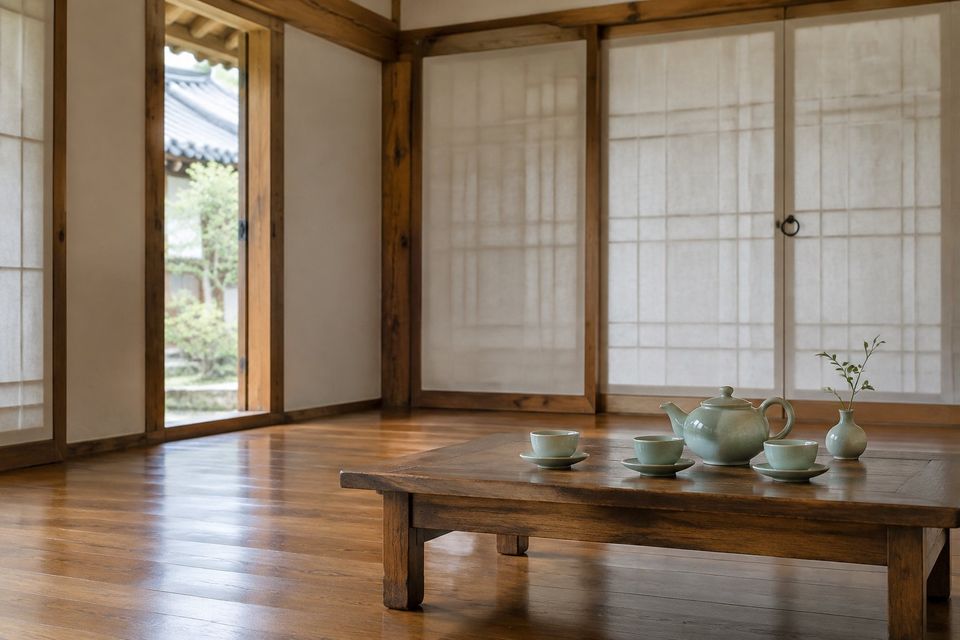
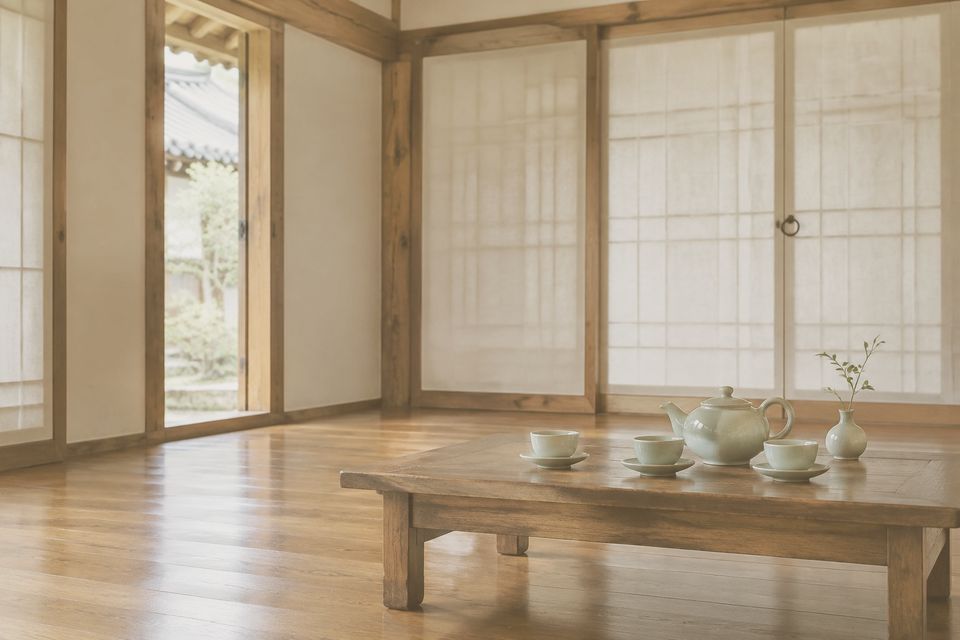
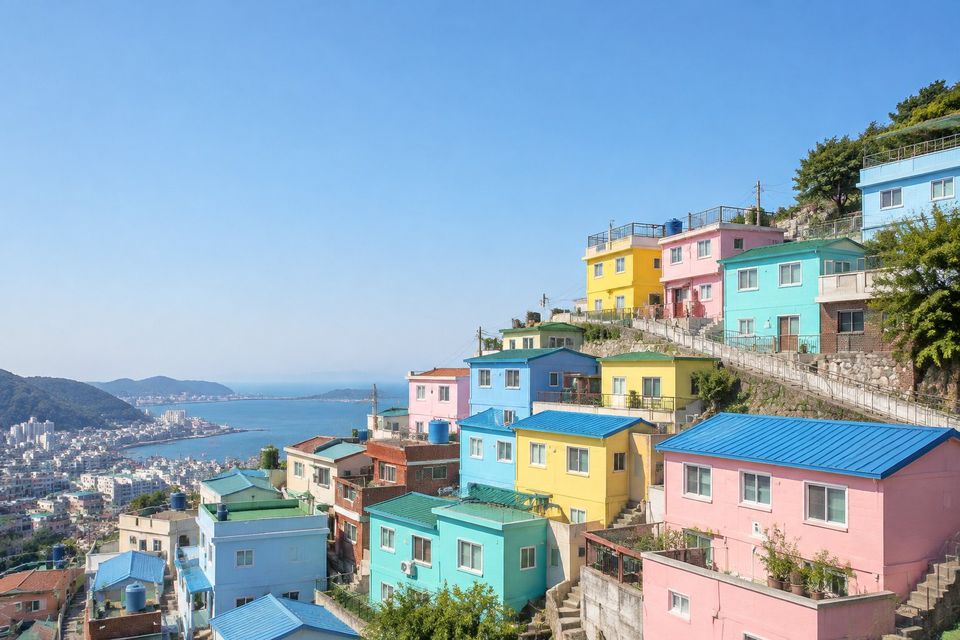
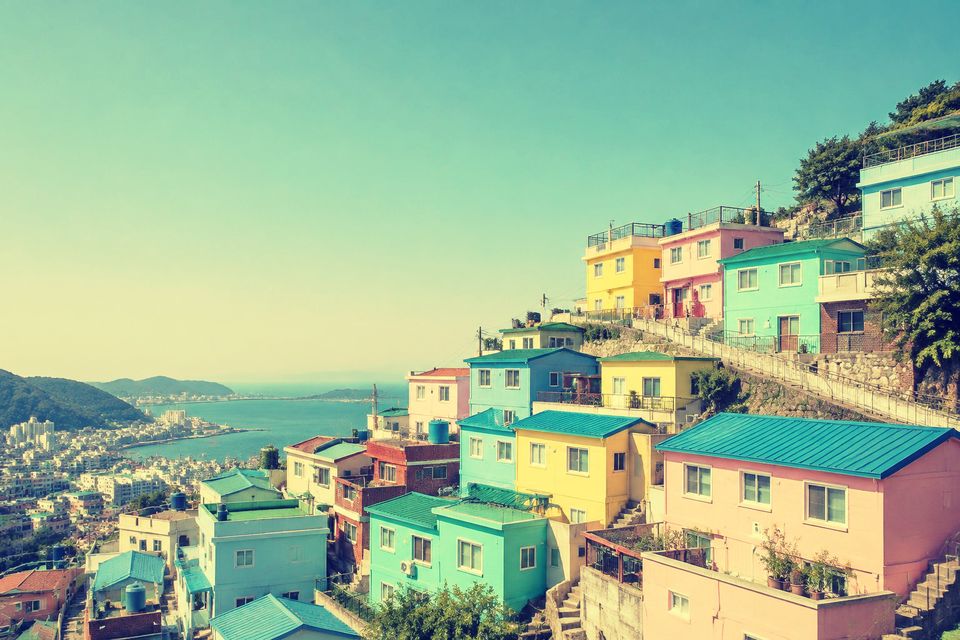
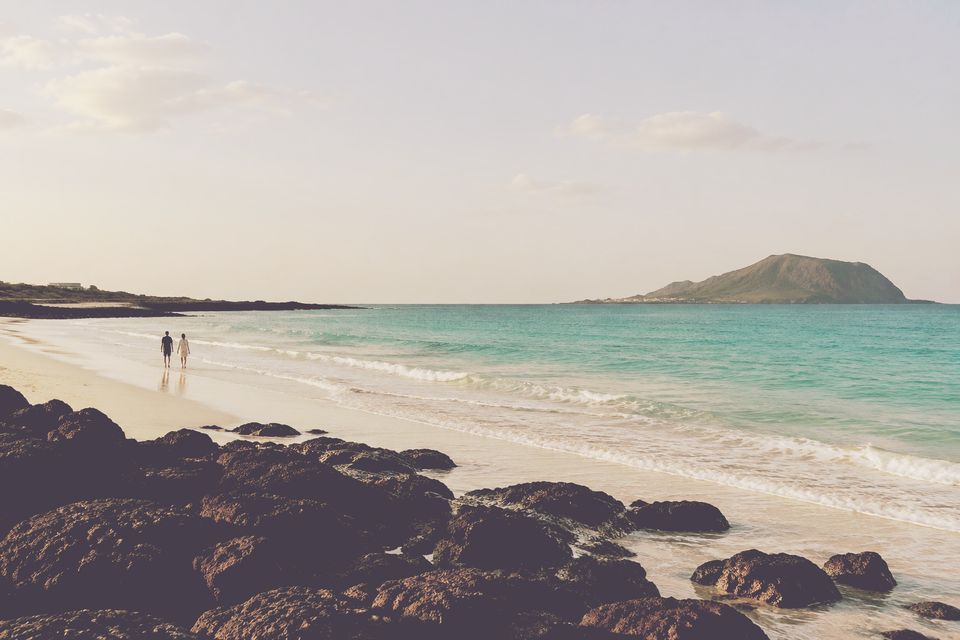
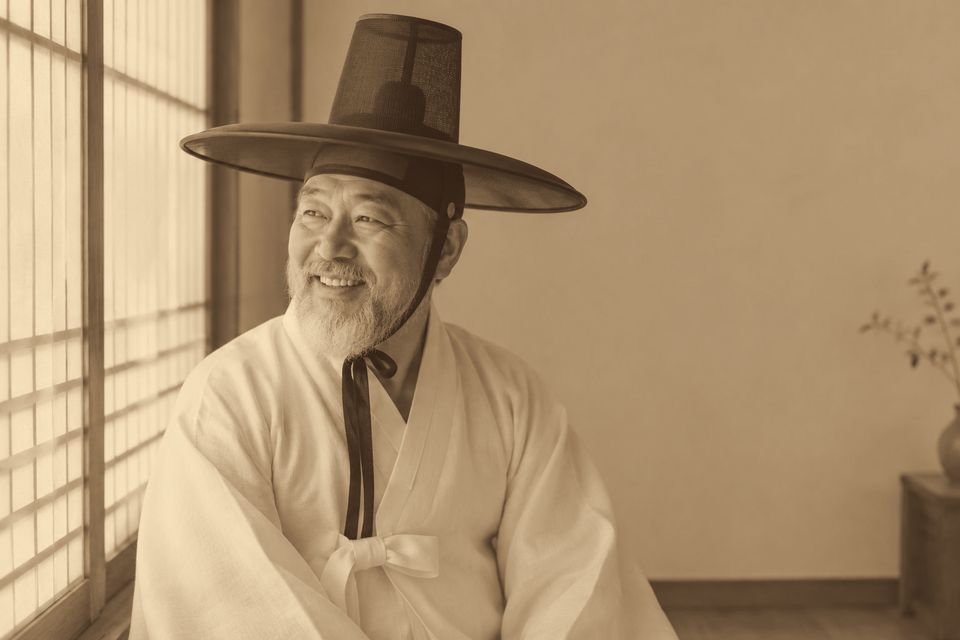
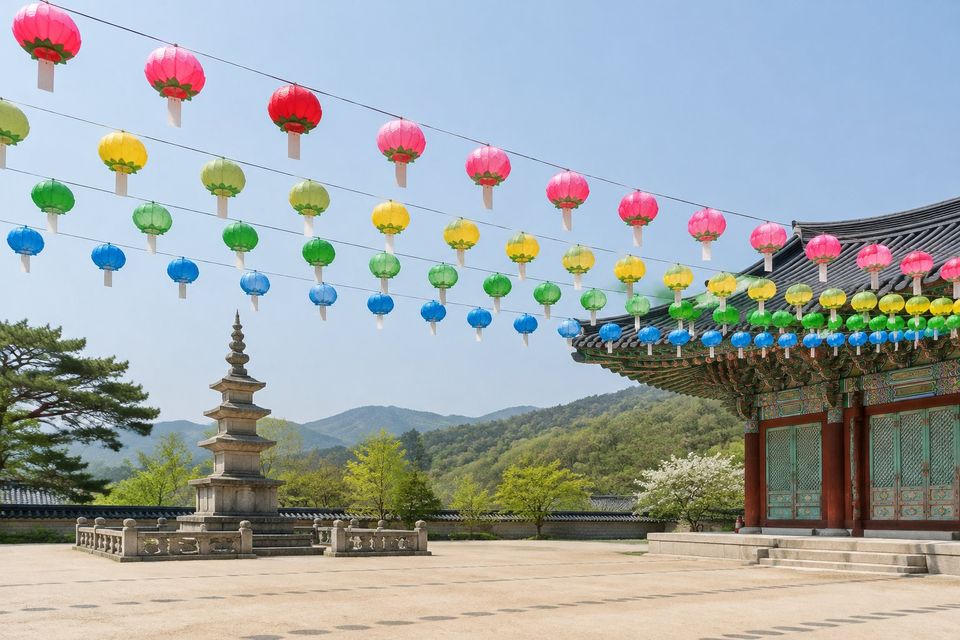
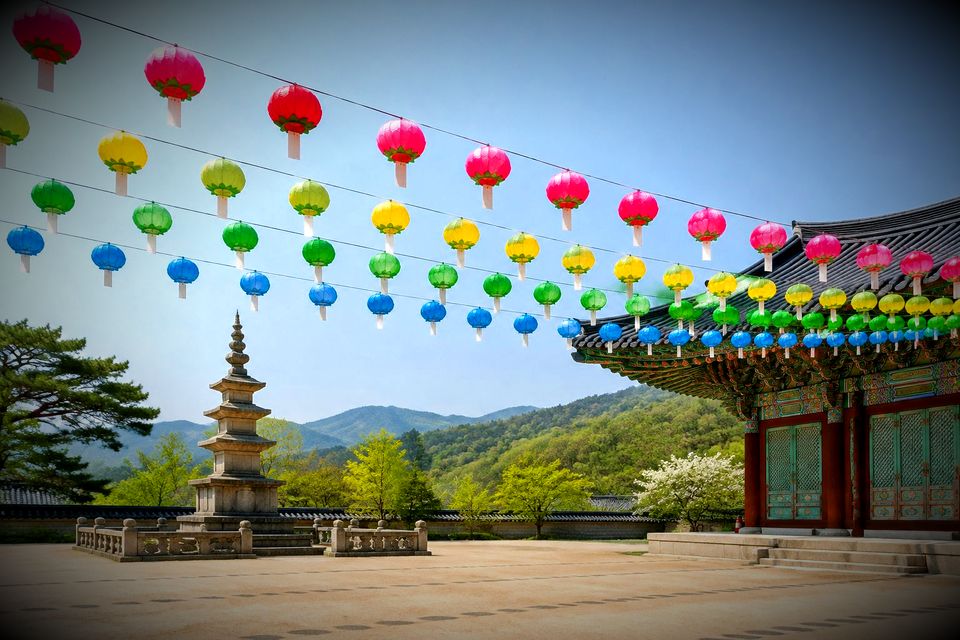
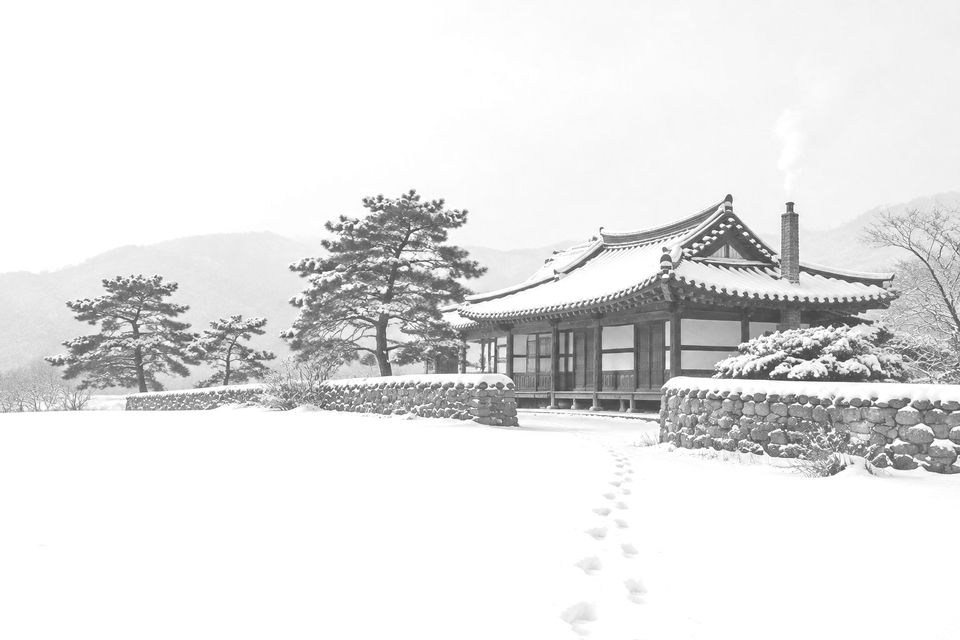
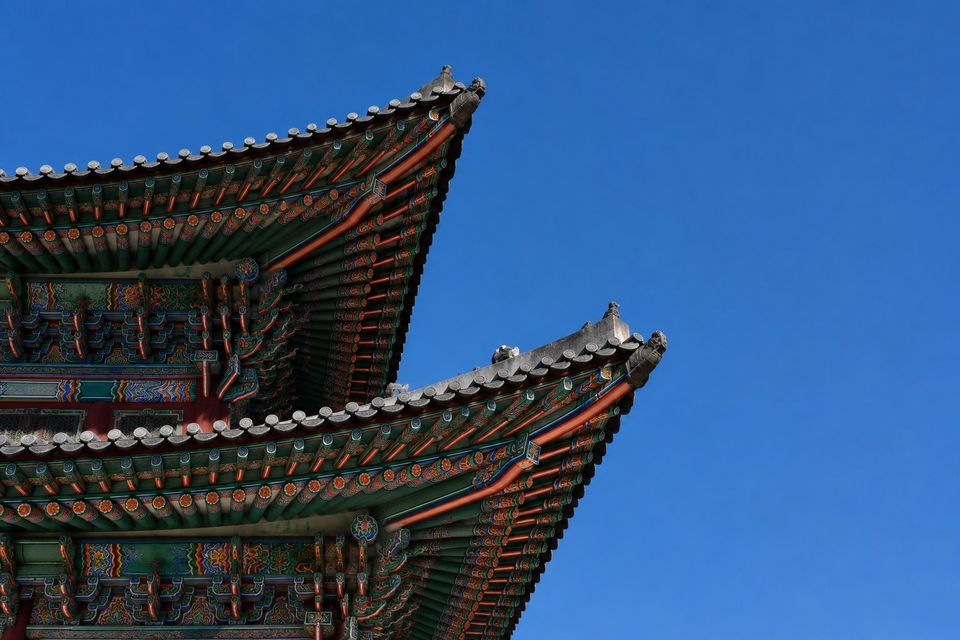
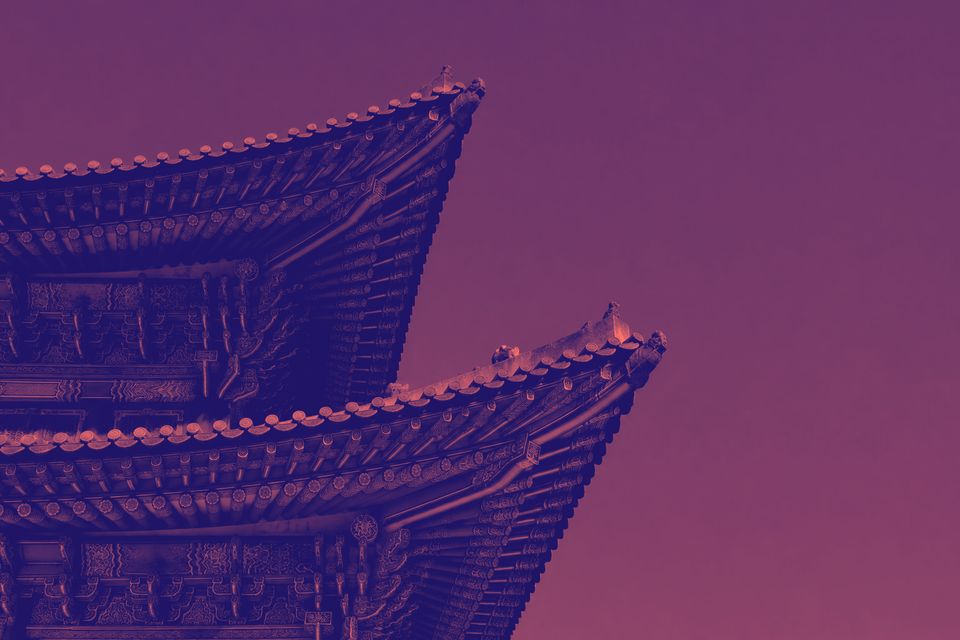
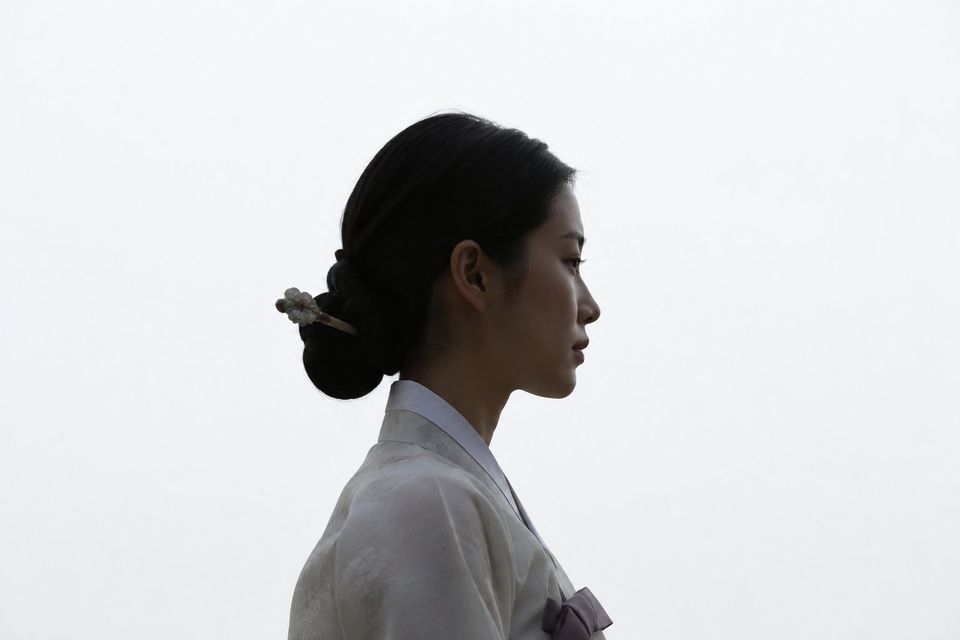
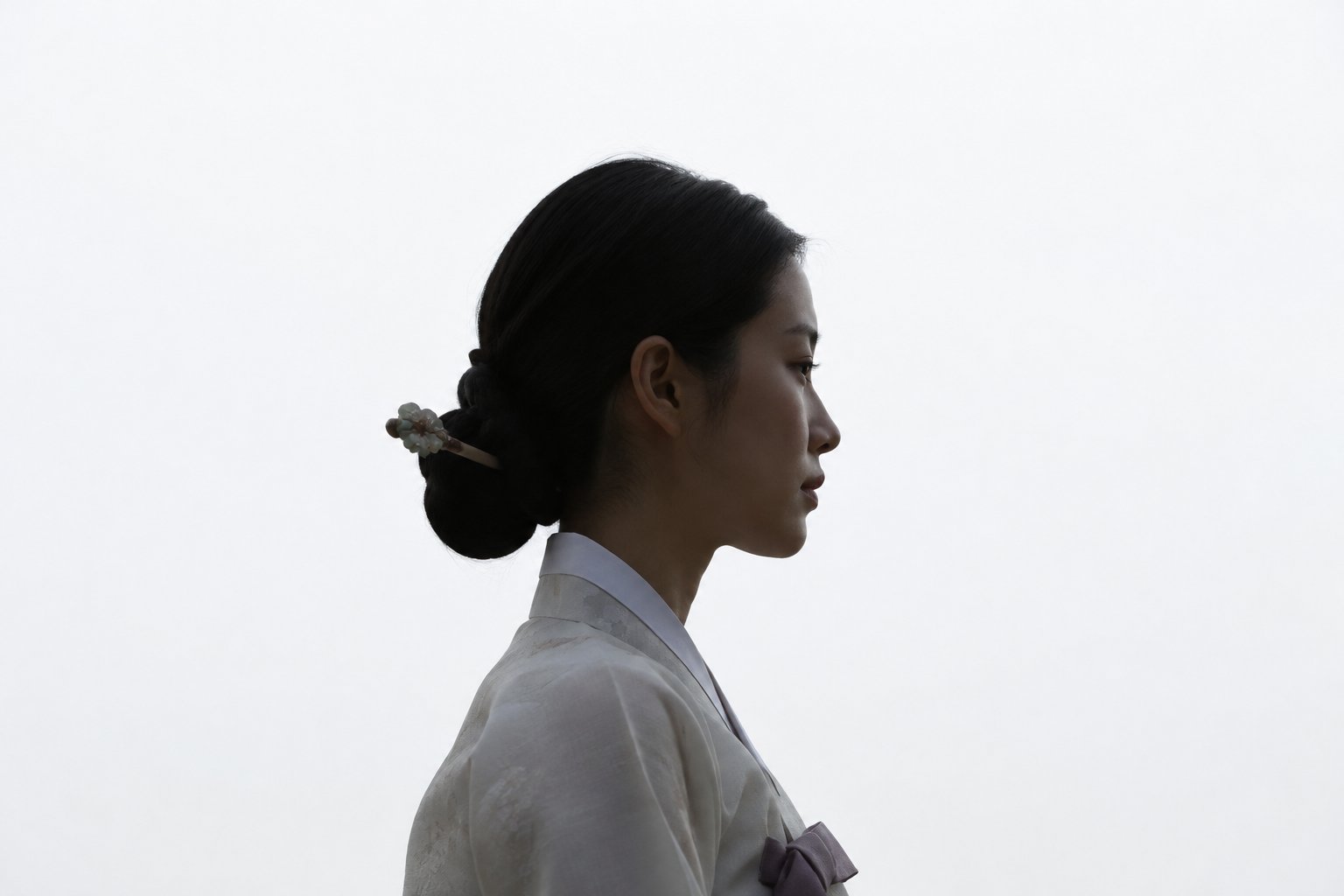
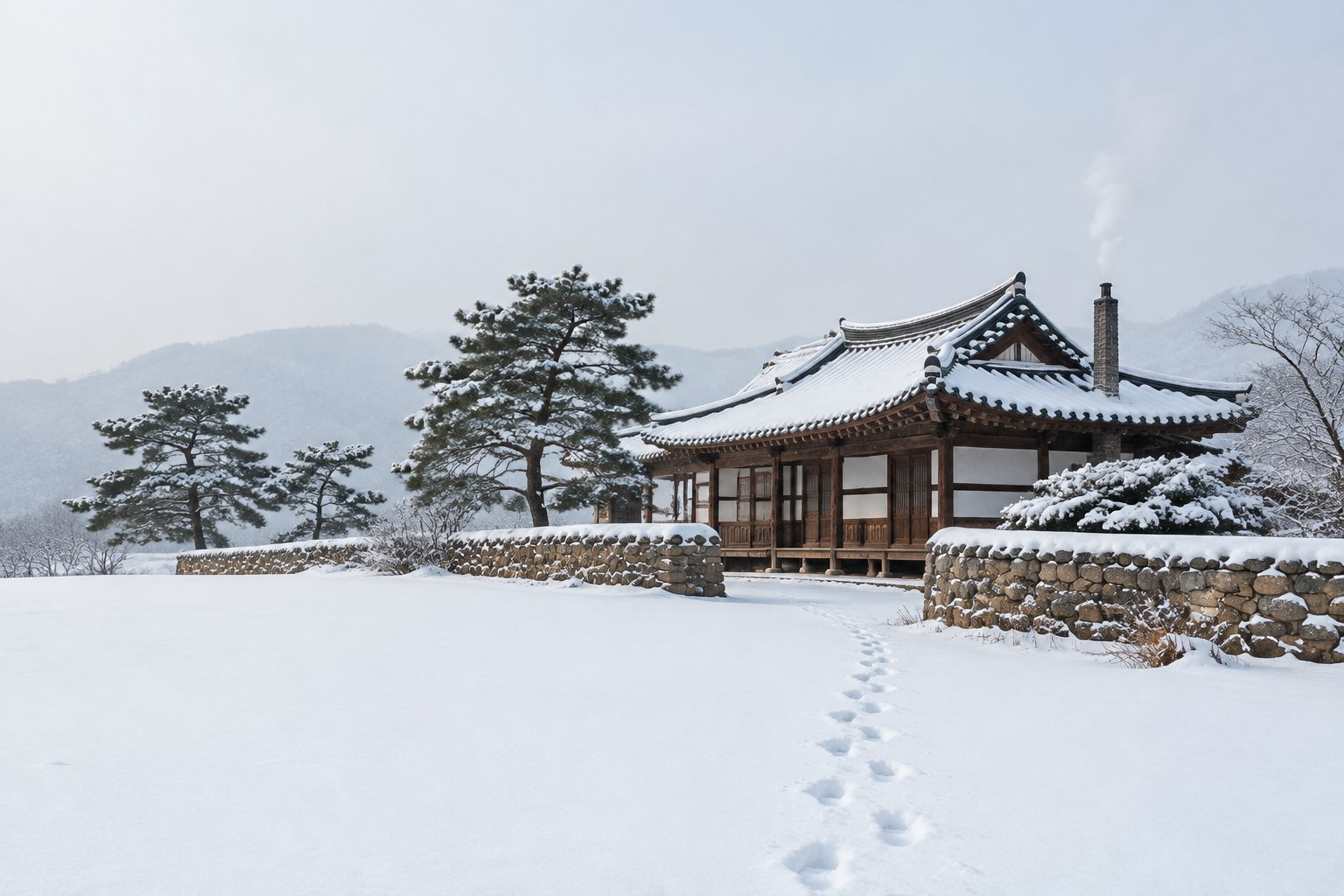
24 looks built from layeris operations, each applied to a real photo. Drag the divider to compare. Every snippet below is the exact code that rendered its image, and it runs as-is: it assumes from layeris import LayerImage, import numpy as np and the sample photos in a photos/ folder. Finish with image.save("result.jpg").
Filter by method
Everyday Fixes
Small corrections that make a photo look the way it felt.
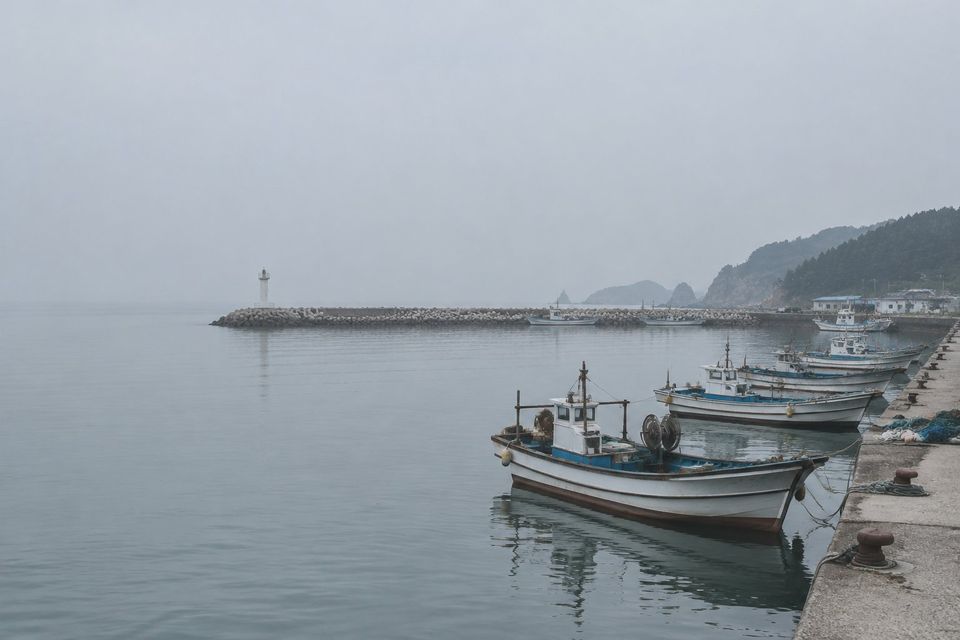
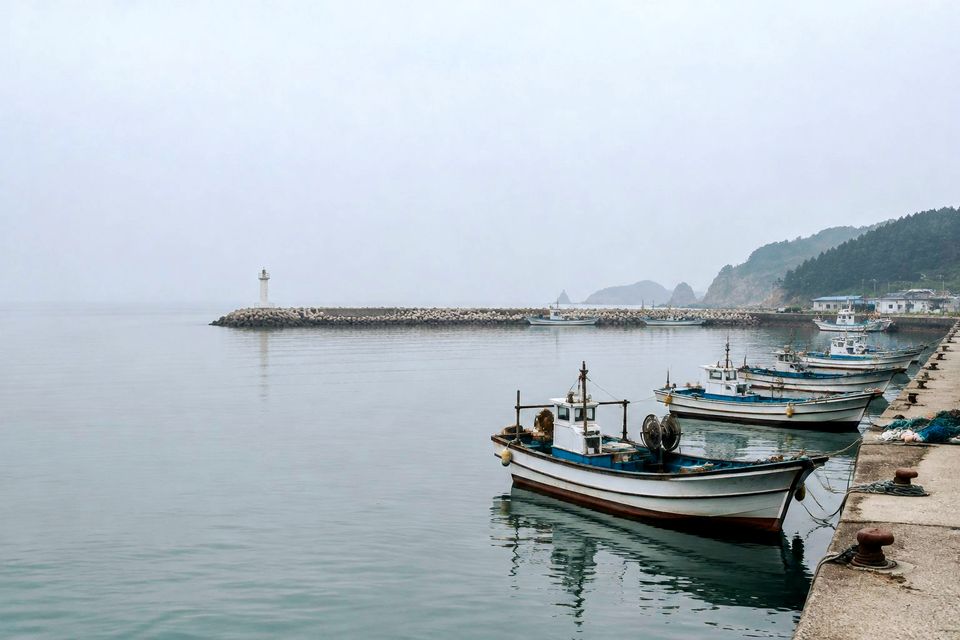
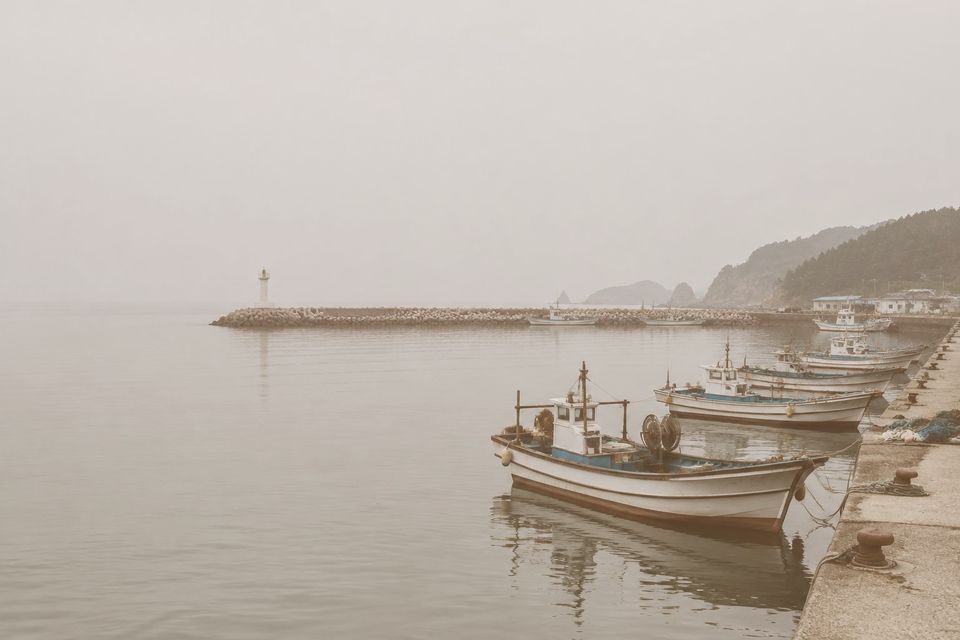
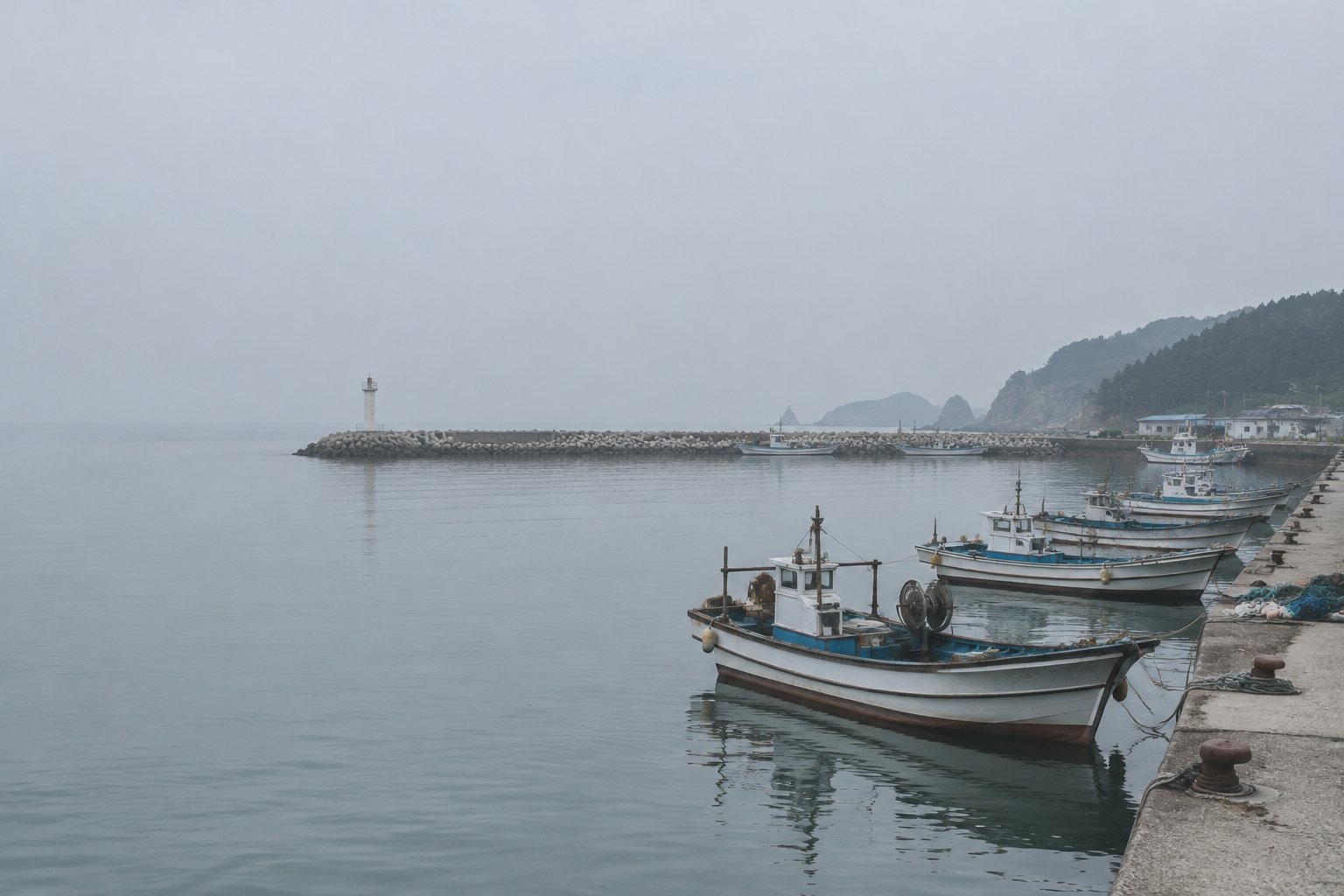
A hazy, overcast shot has no true blacks or whites. Curve points computed with NumPy emulate a Levels adjustment that stretches the tones to the full range; saturation and a warm overlay bring the colors back.
Uses
image = LayerImage.from_file("photos/fishing-harbor.jpg")
# Levels: map input 0.16 to black and 0.82 to white
x = np.linspace(0, 1, 26)
levels = np.clip((x - 0.16) / 0.66, 0, 1)

(image.curve("rgb", levels.tolist())
      .saturation(0.35)
      .overlay("#ffd8a8", opacity=0.25))
Exaggerate the sunrise: Screen a dark orange to lift and tint the shadows, Overlay a brighter one to warm the midtones, then restore contrast with an S-curve.
Toy-camera look: high contrast, oversaturated color and dark corners. The vignette is a NumPy array blended with Multiply, where white in the center leaves pixels untouched.
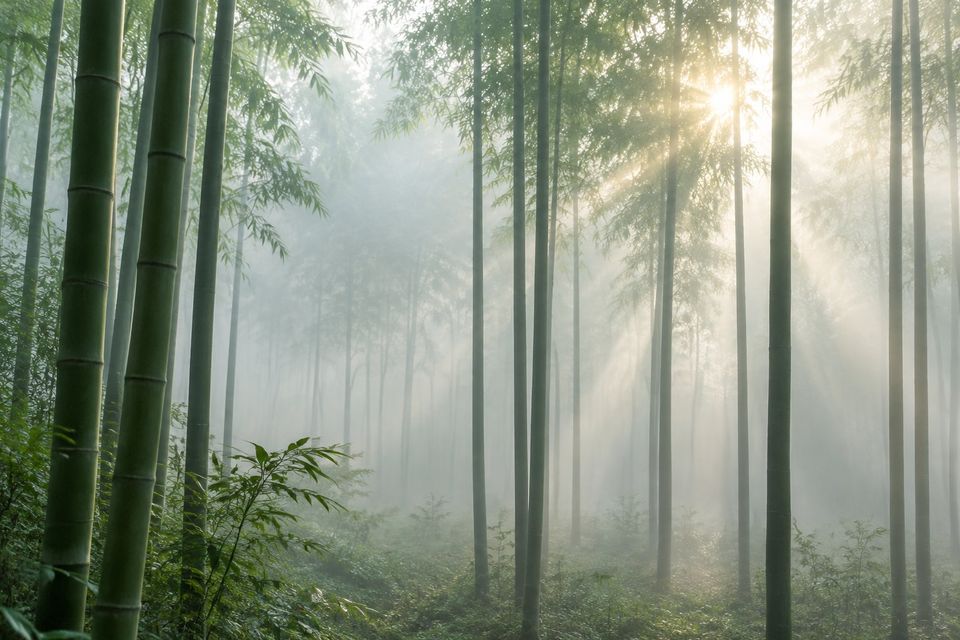
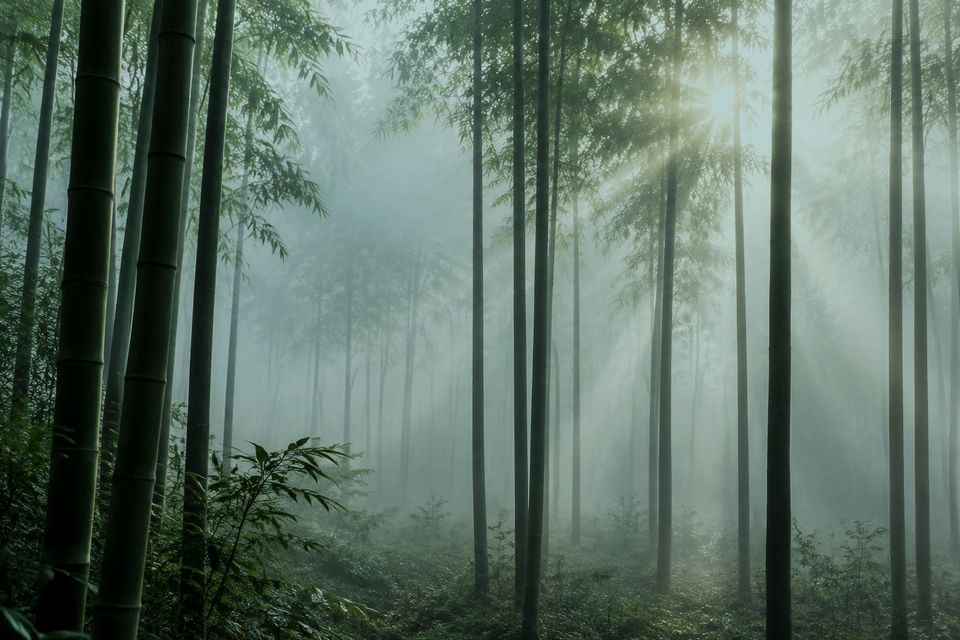
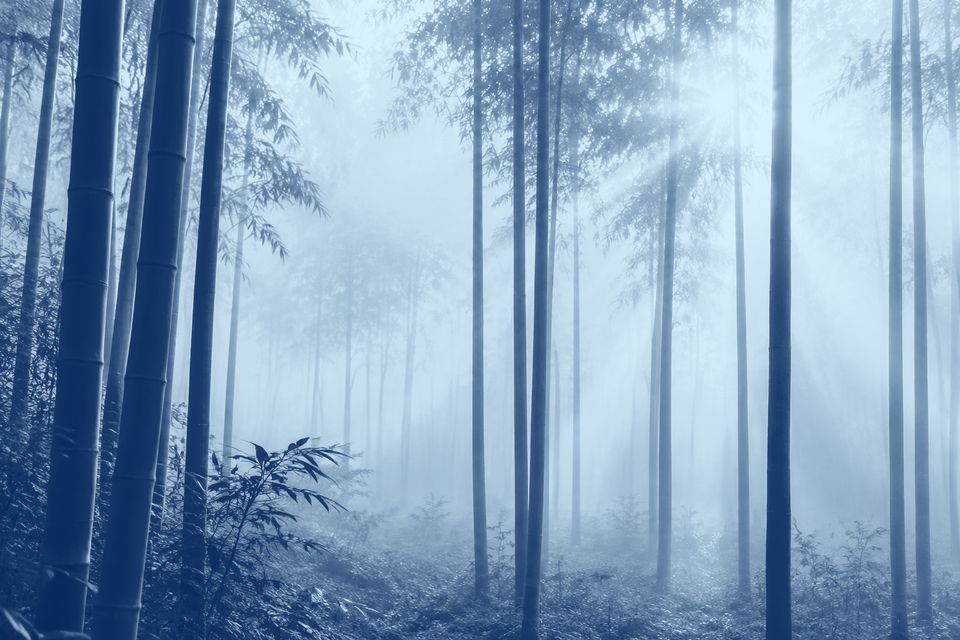
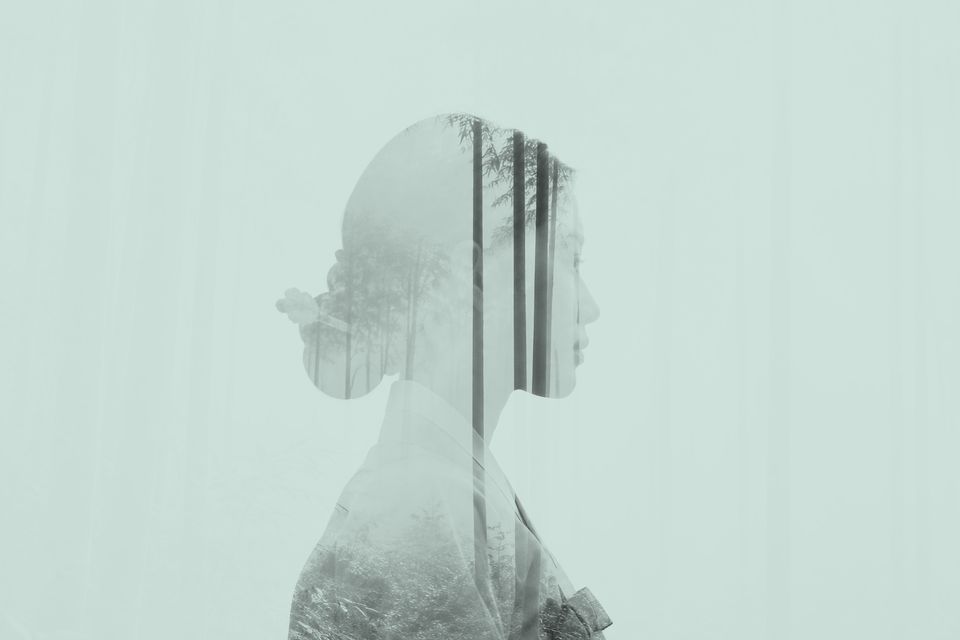
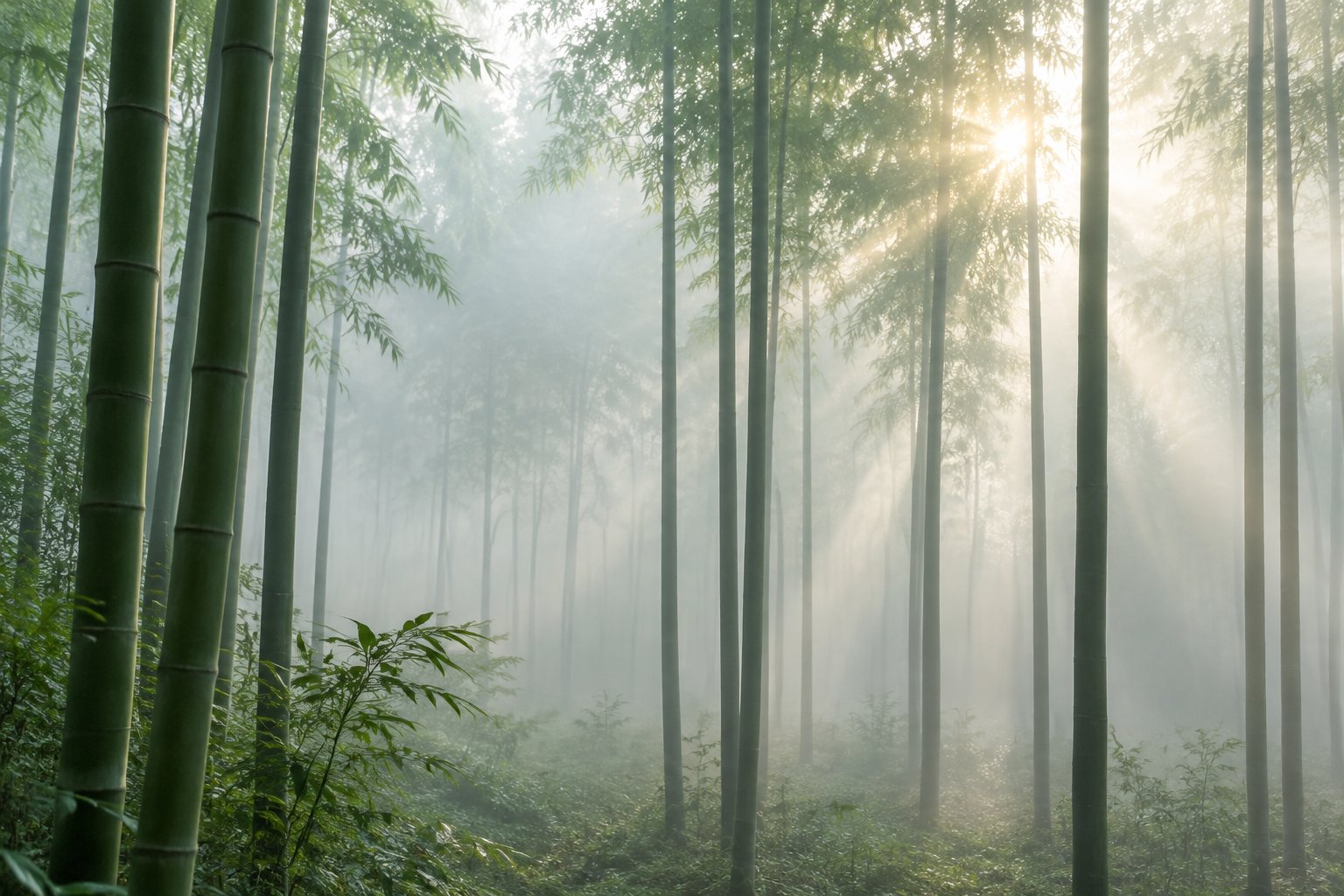
Blend modes accept another photo's pixels. Screen keeps the white sky white and fills the dark silhouette with the bamboo; a pale green Multiply tints the result.
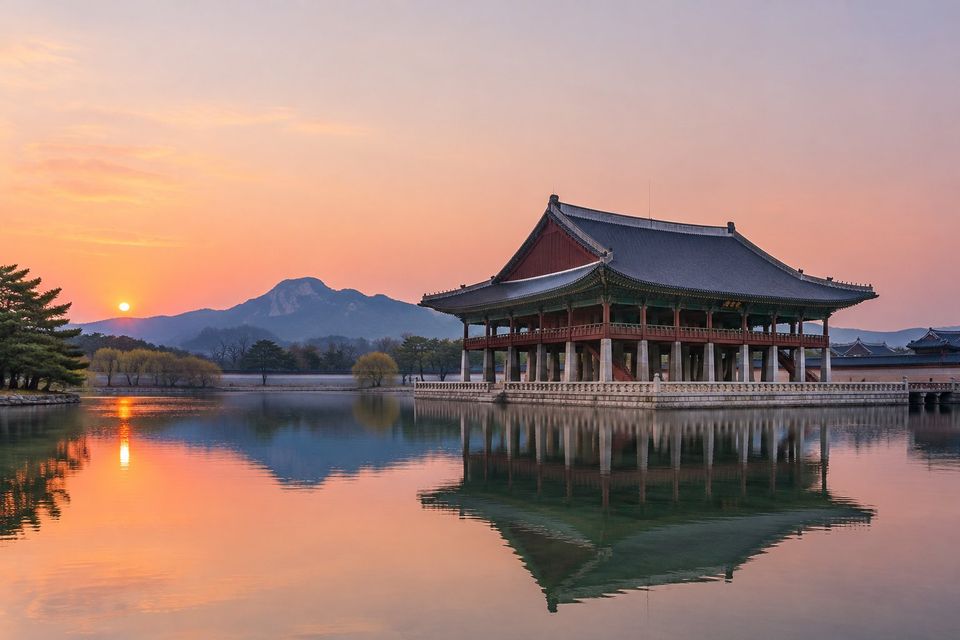
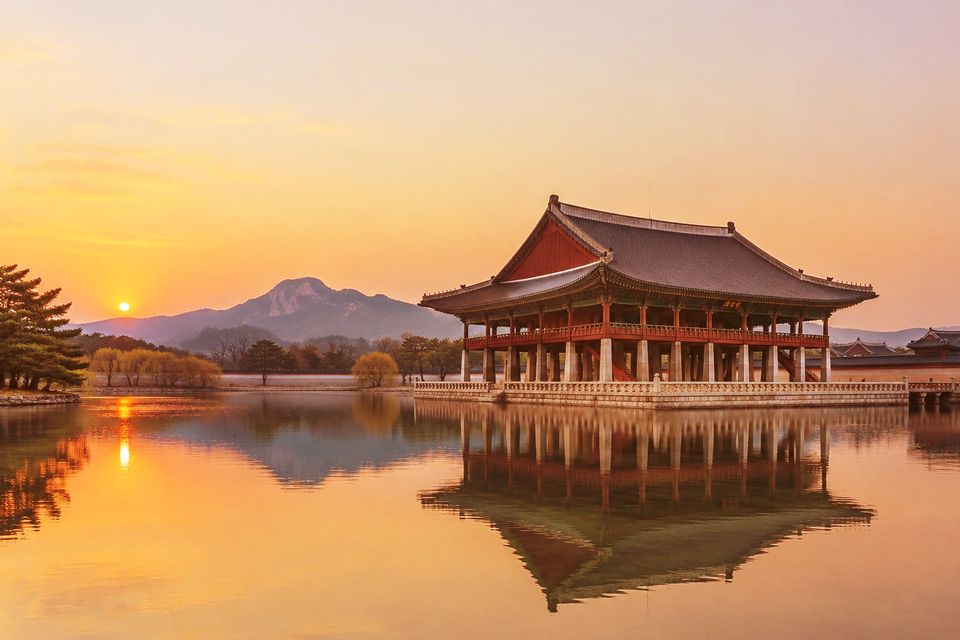
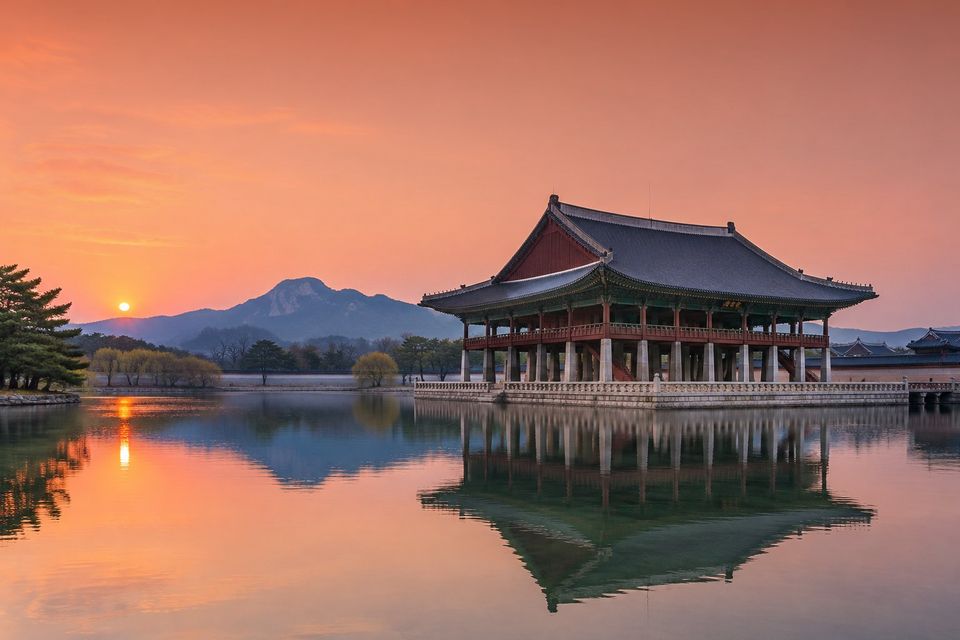
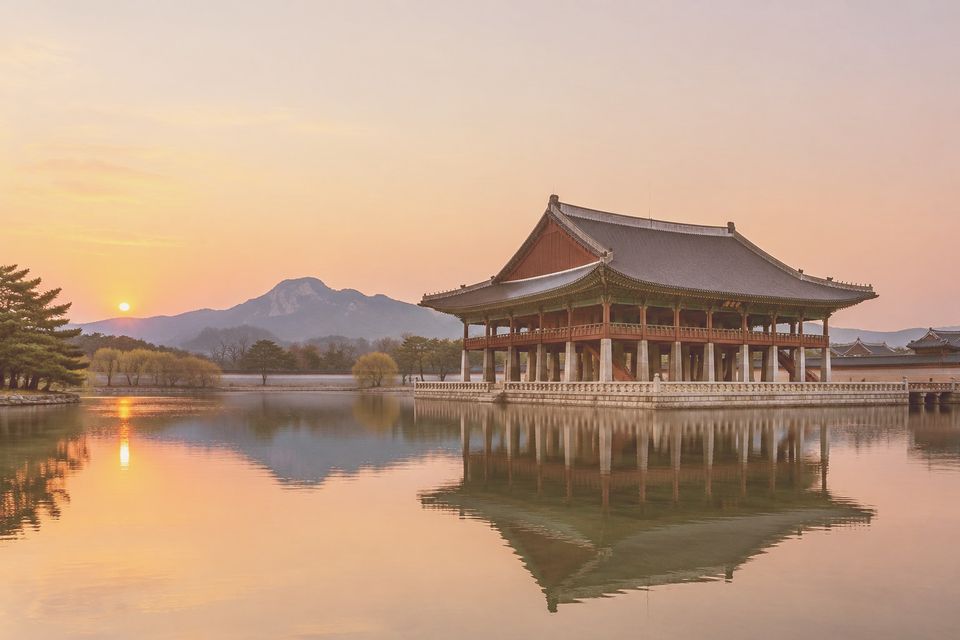
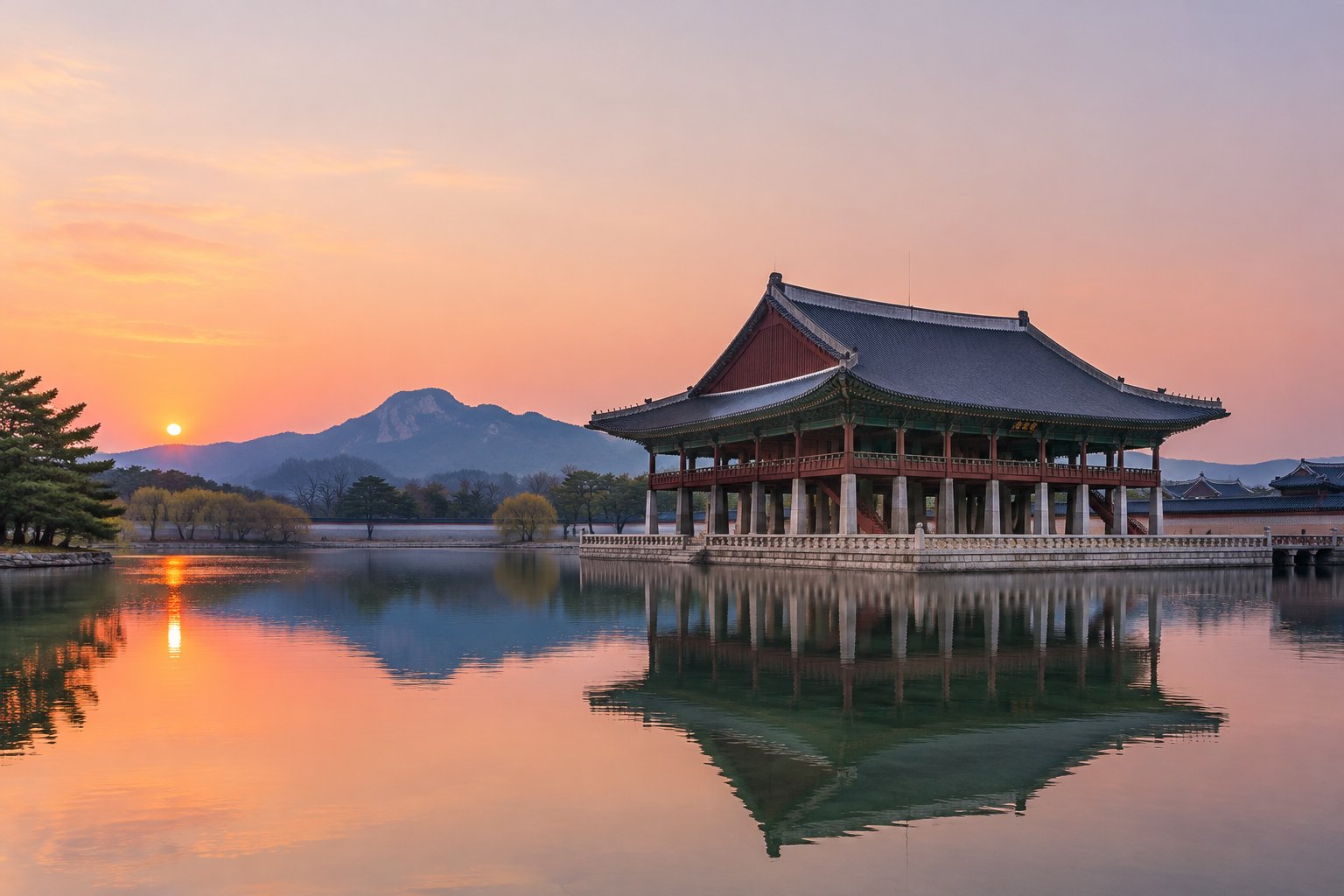
A vertical gradient from warm tint to white, blended with Multiply, deepens the sky while leaving the pond untouched, like a graduated filter on a lens.
Uses
image = LayerImage.from_file("photos/palace-pond.jpg")
h, w, _ = image.get_image_as_array().shape
t = np.clip(np.linspace(0, 2.2, h), 0, 1)[:, np.newaxis, np.newaxis]
gradient = (1 - t) * np.array([0.95, 0.55, 0.4]) + t  # tint at the top fading to white

image.multiply(gradient)
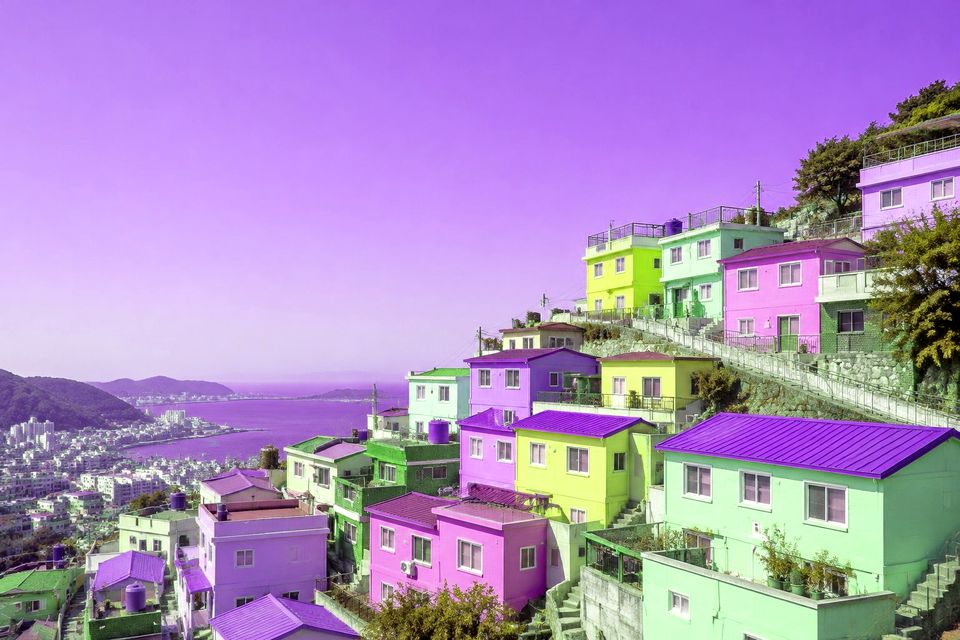
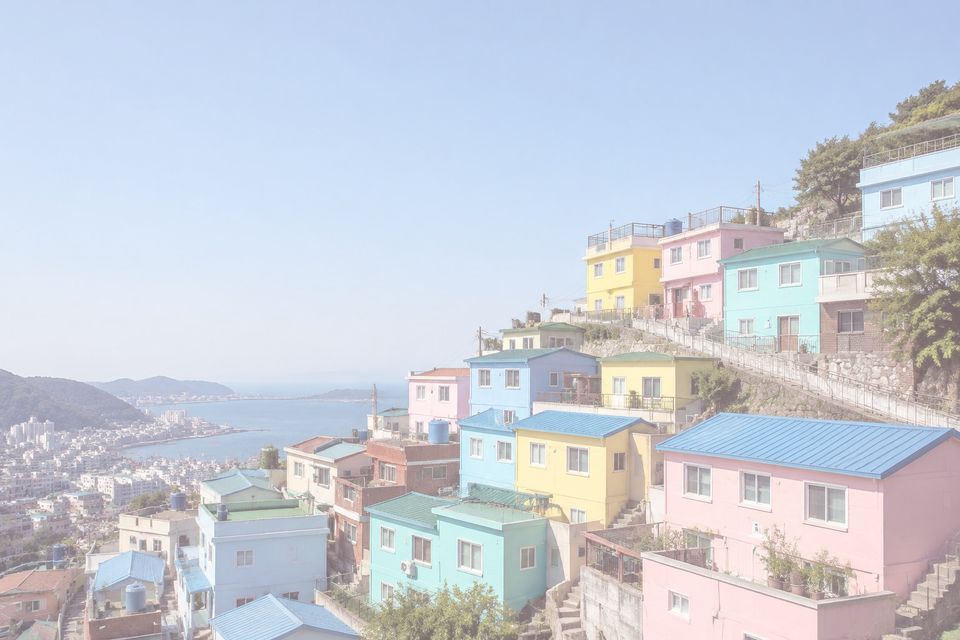
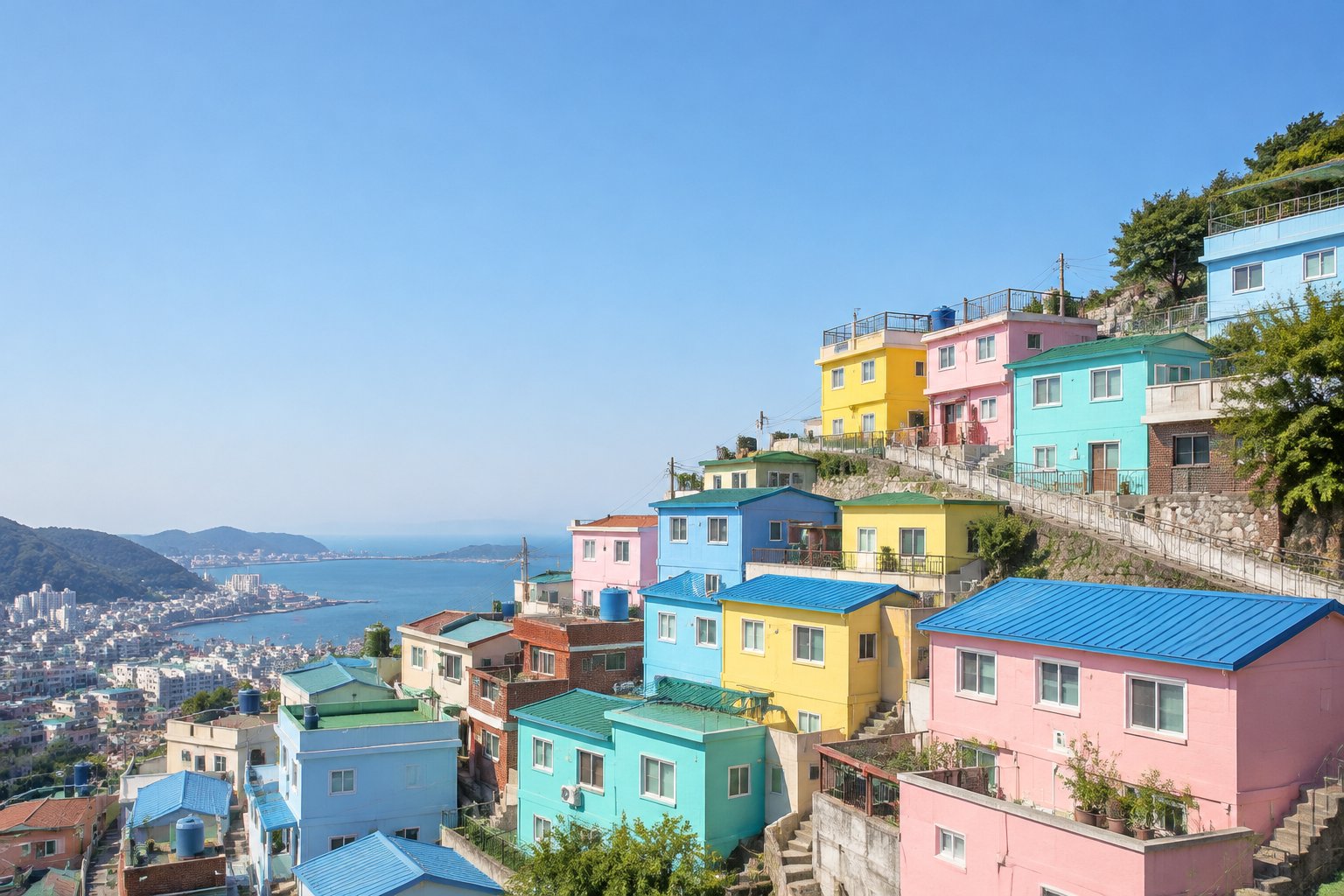
LayerImage works on plain NumPy arrays, so anything NumPy can do is fair game. Swapping the red and green channels turns the turquoise houses violet and the pink ones lime.
Uses
image = LayerImage.from_file("photos/gamcheon-village.jpg")
pixels = image.get_image_as_array()
image = LayerImage.from_array(pixels[..., [1, 0, 2]].copy())  # swap R and G

image.contrast(1.1)
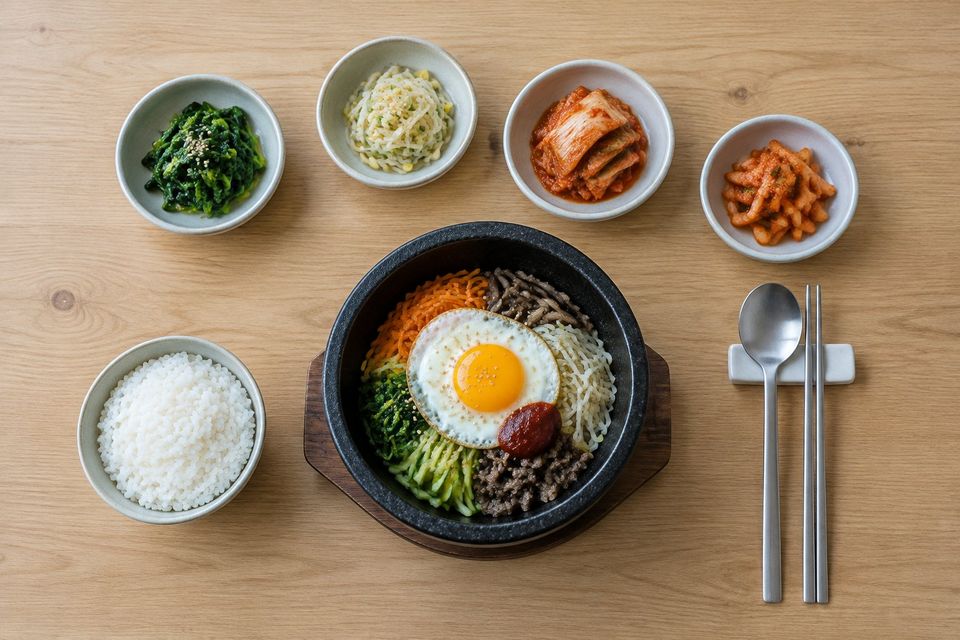
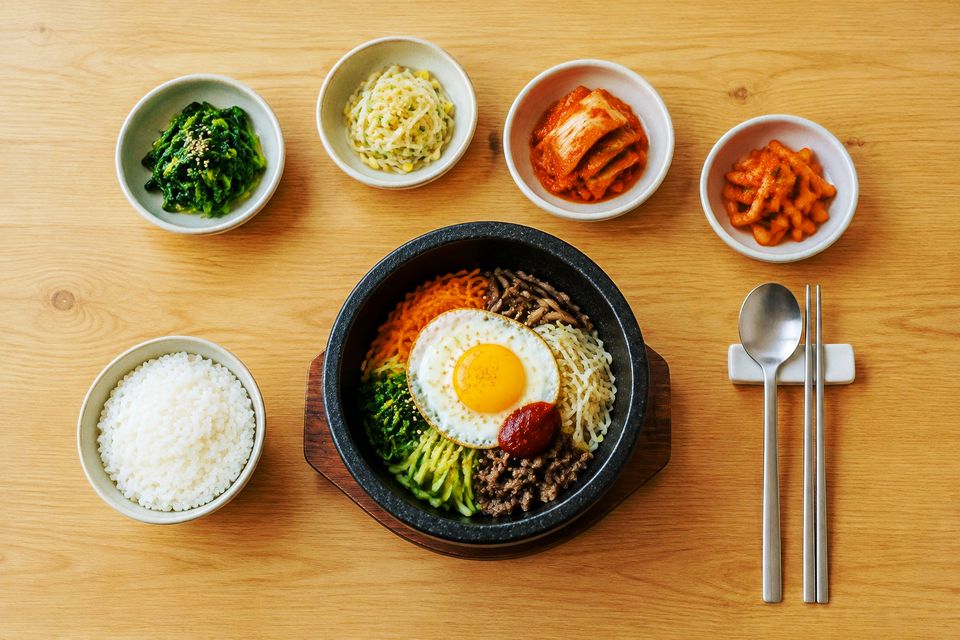
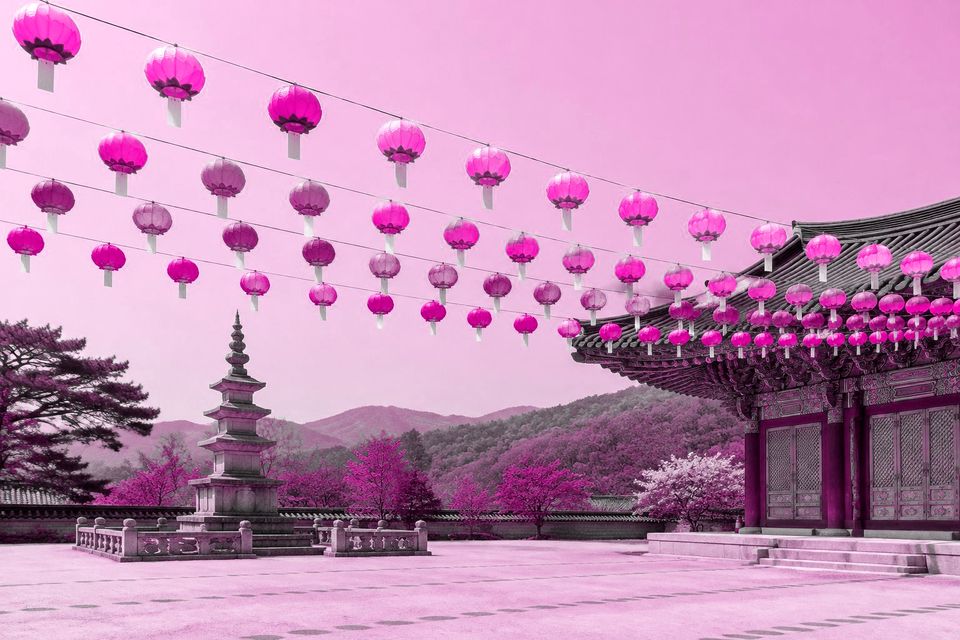
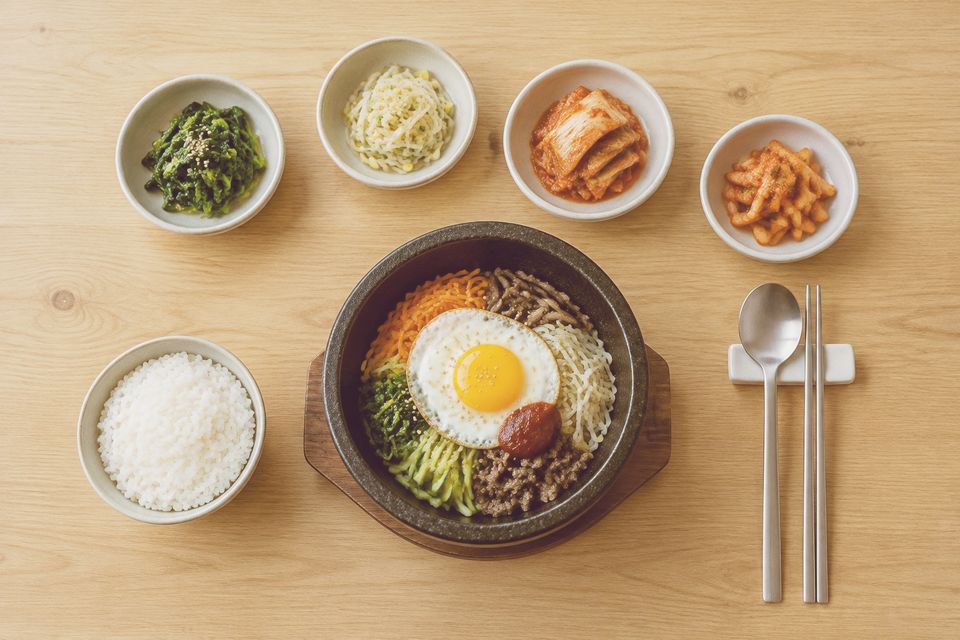
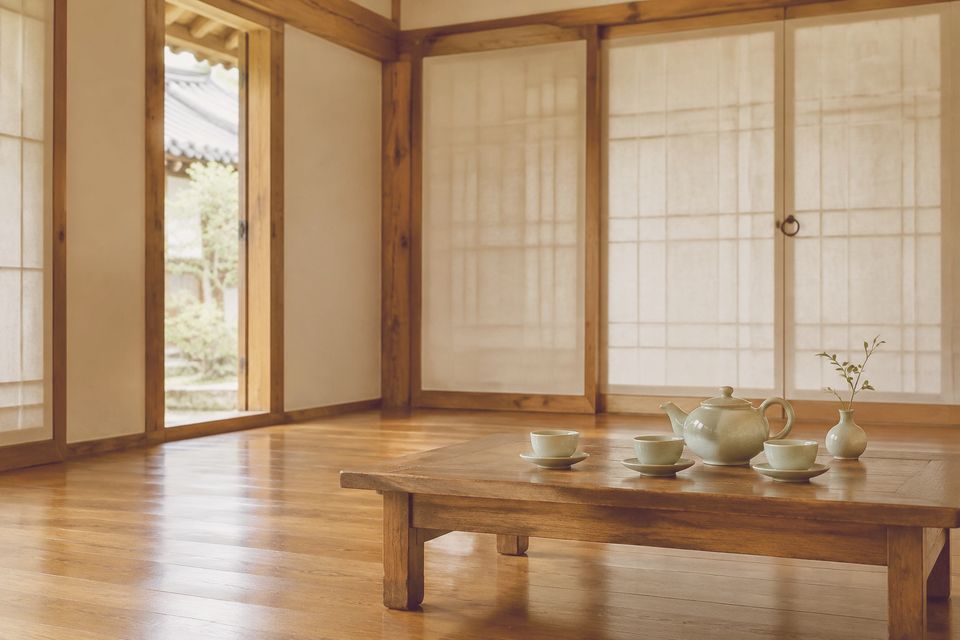
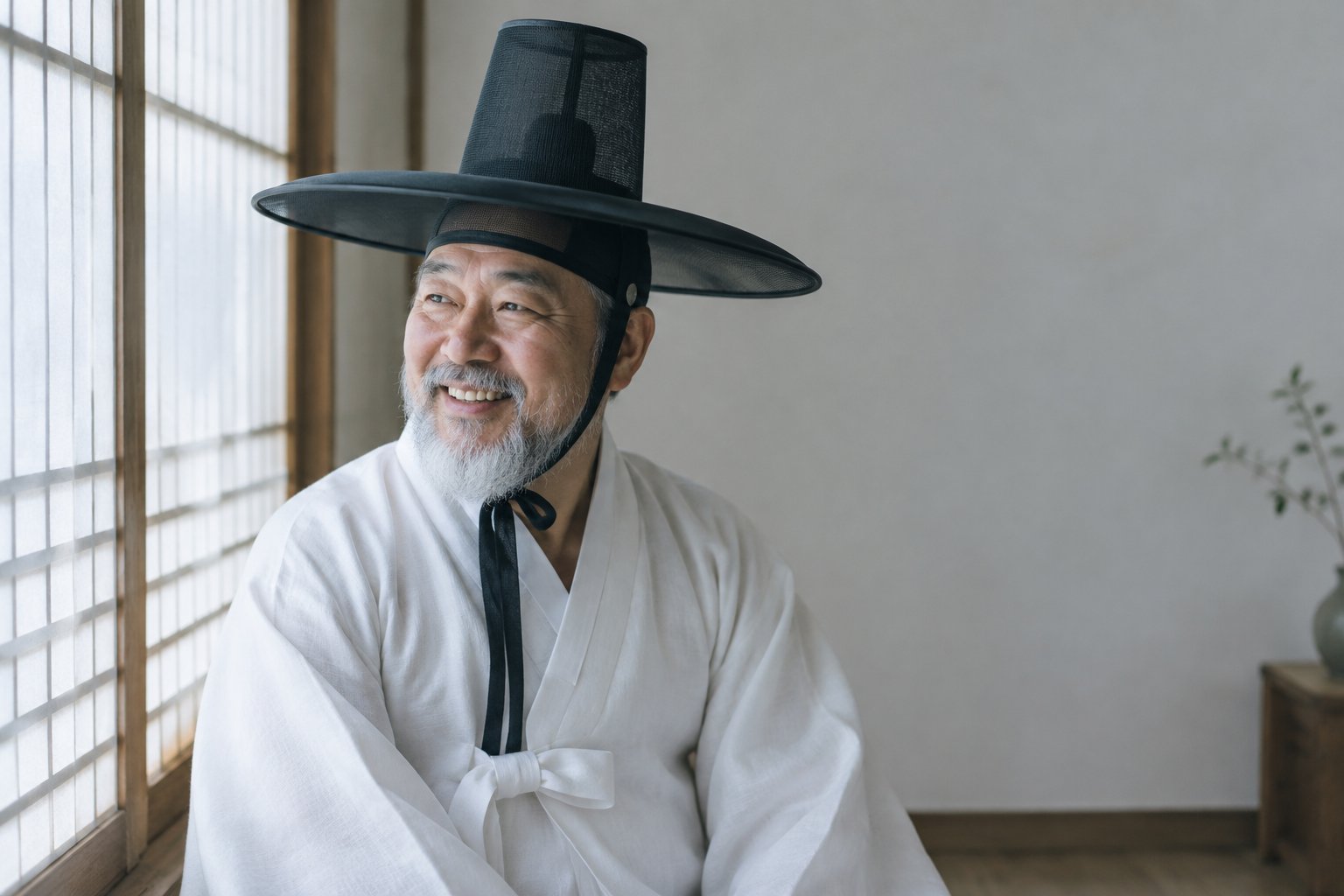
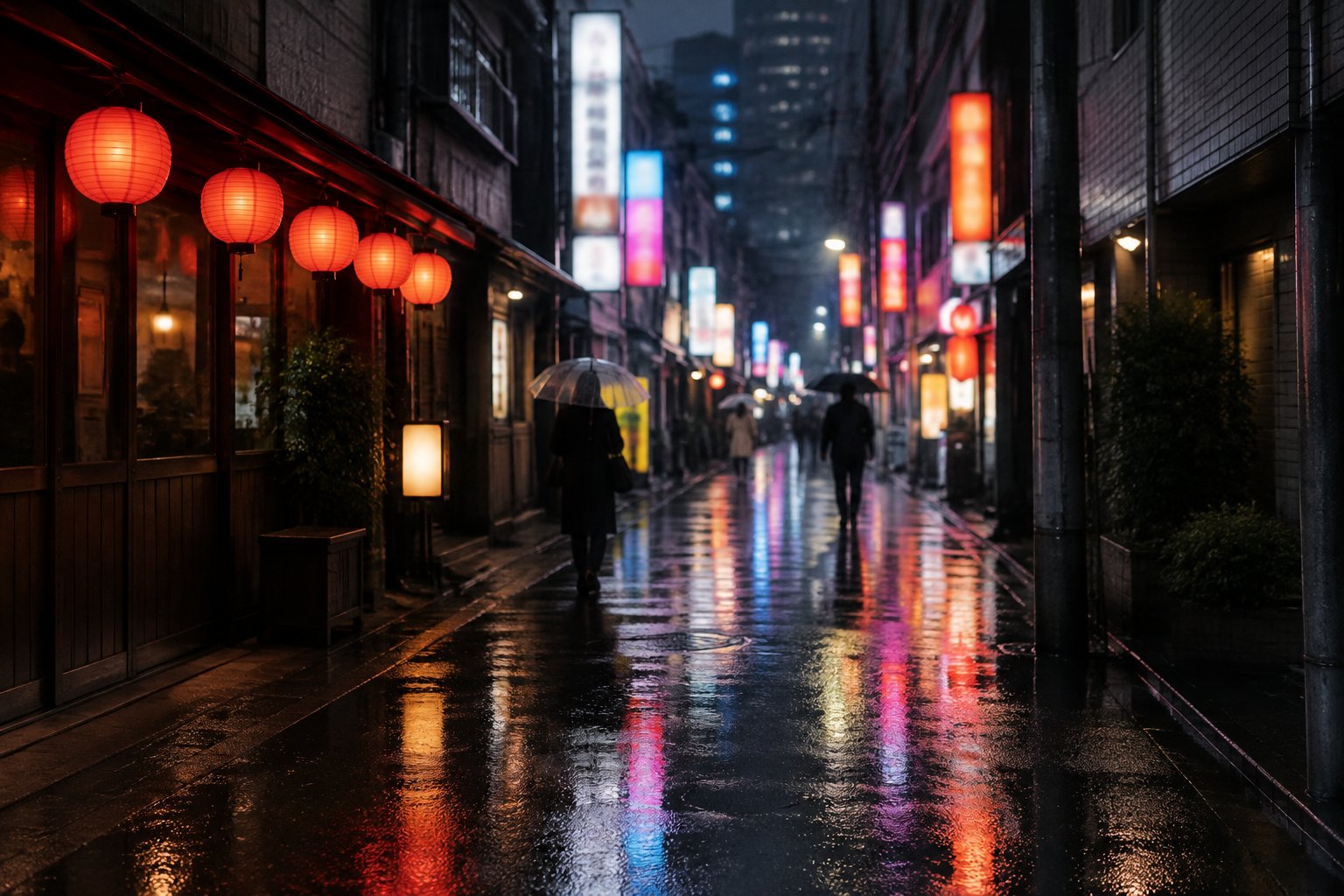
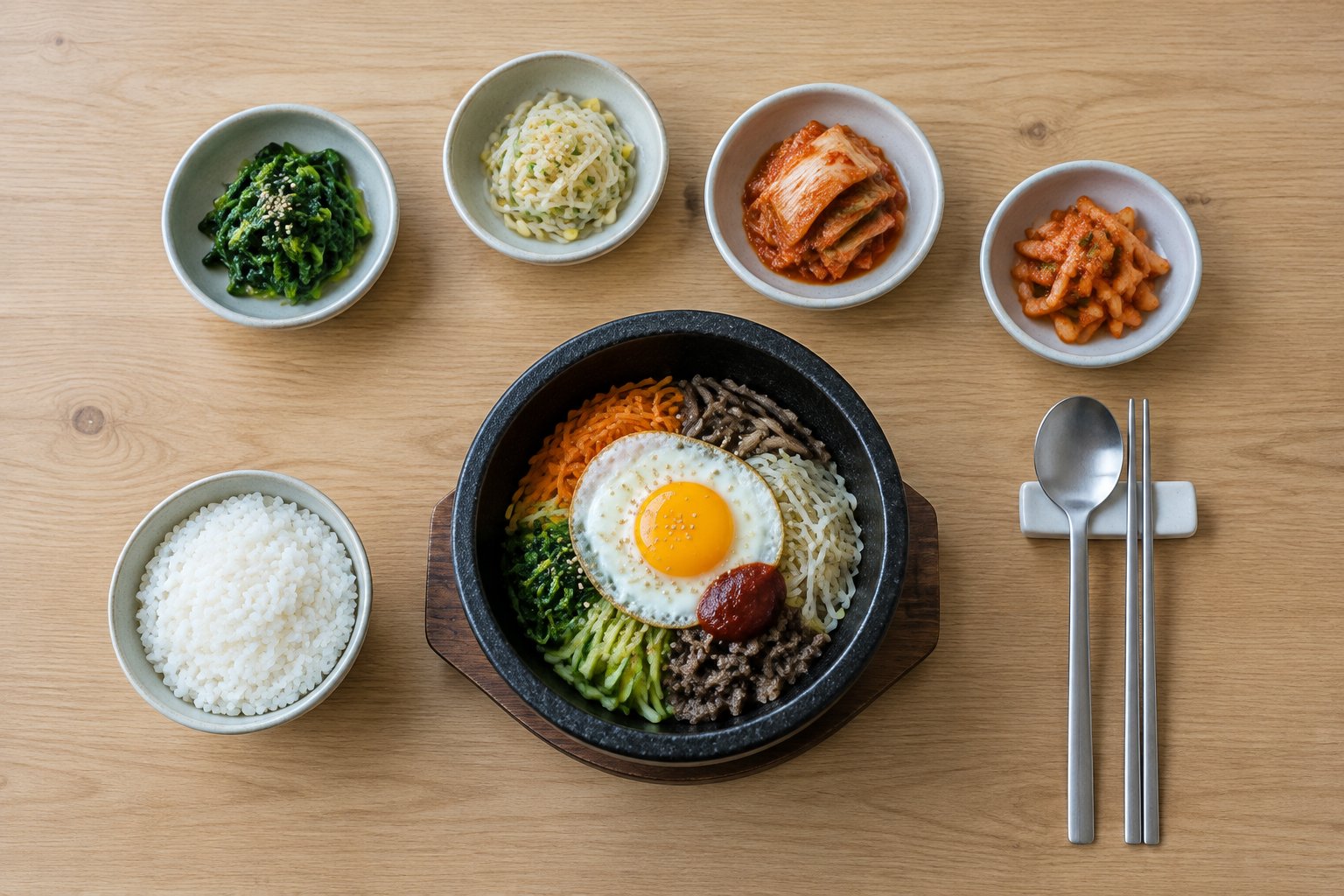
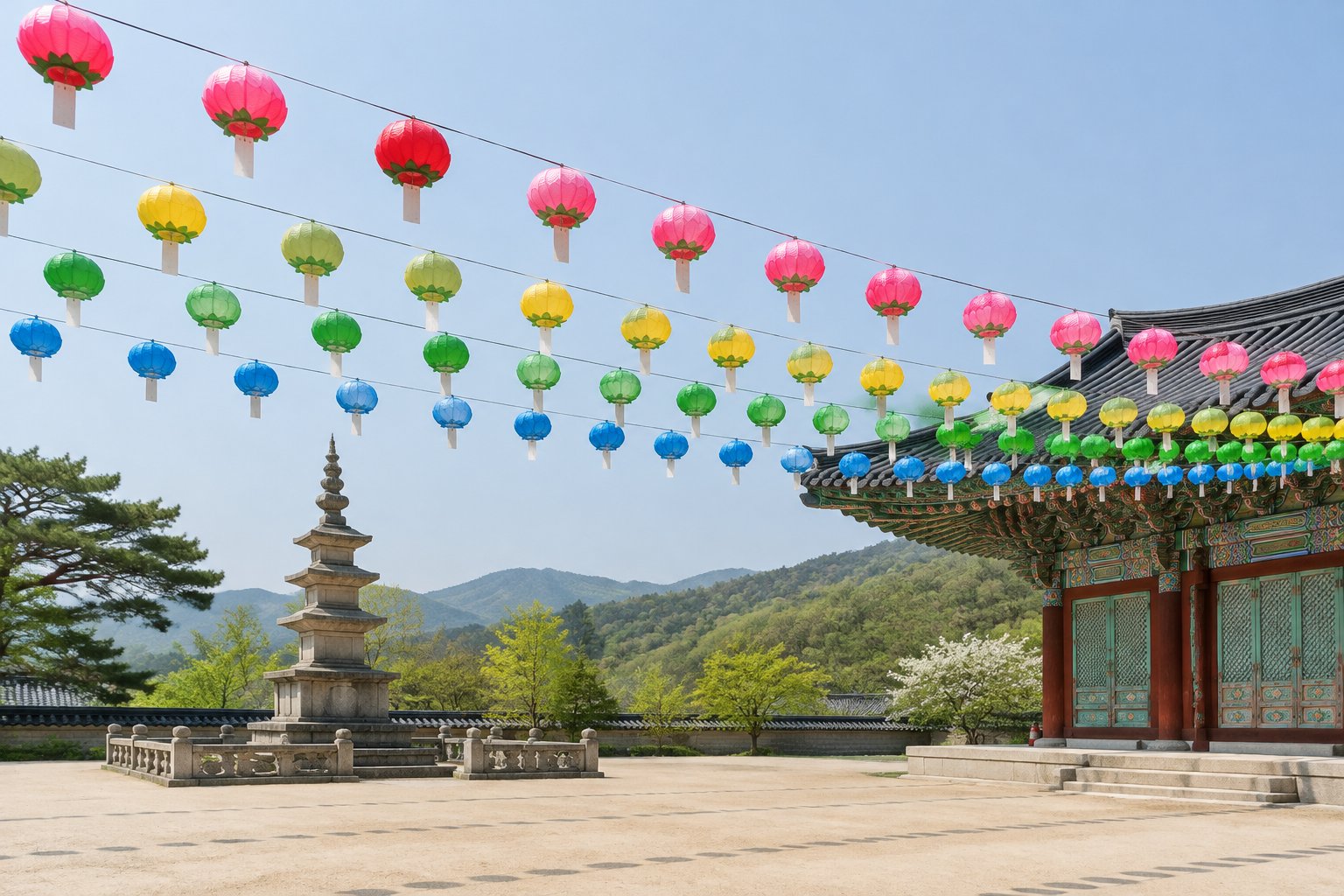
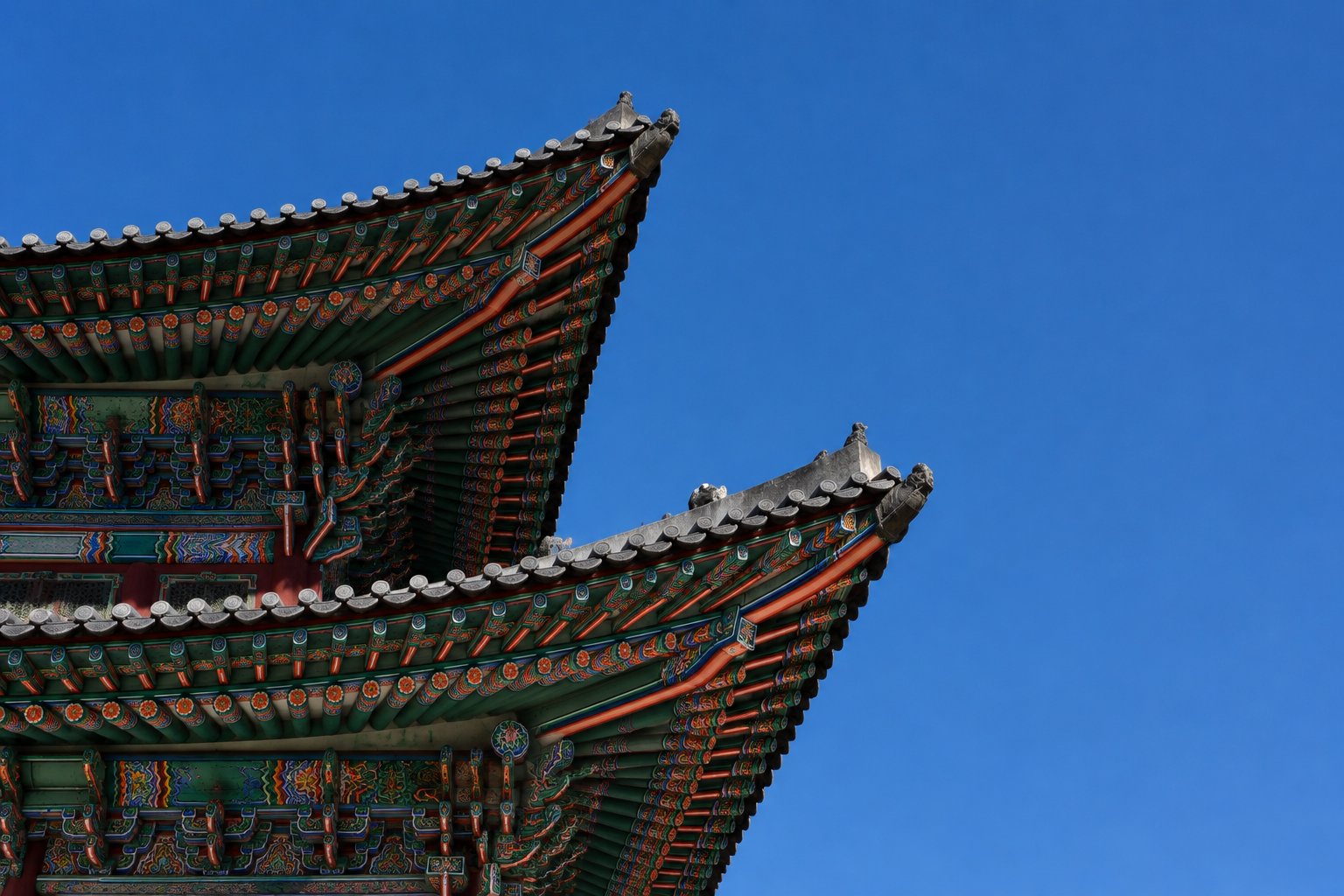
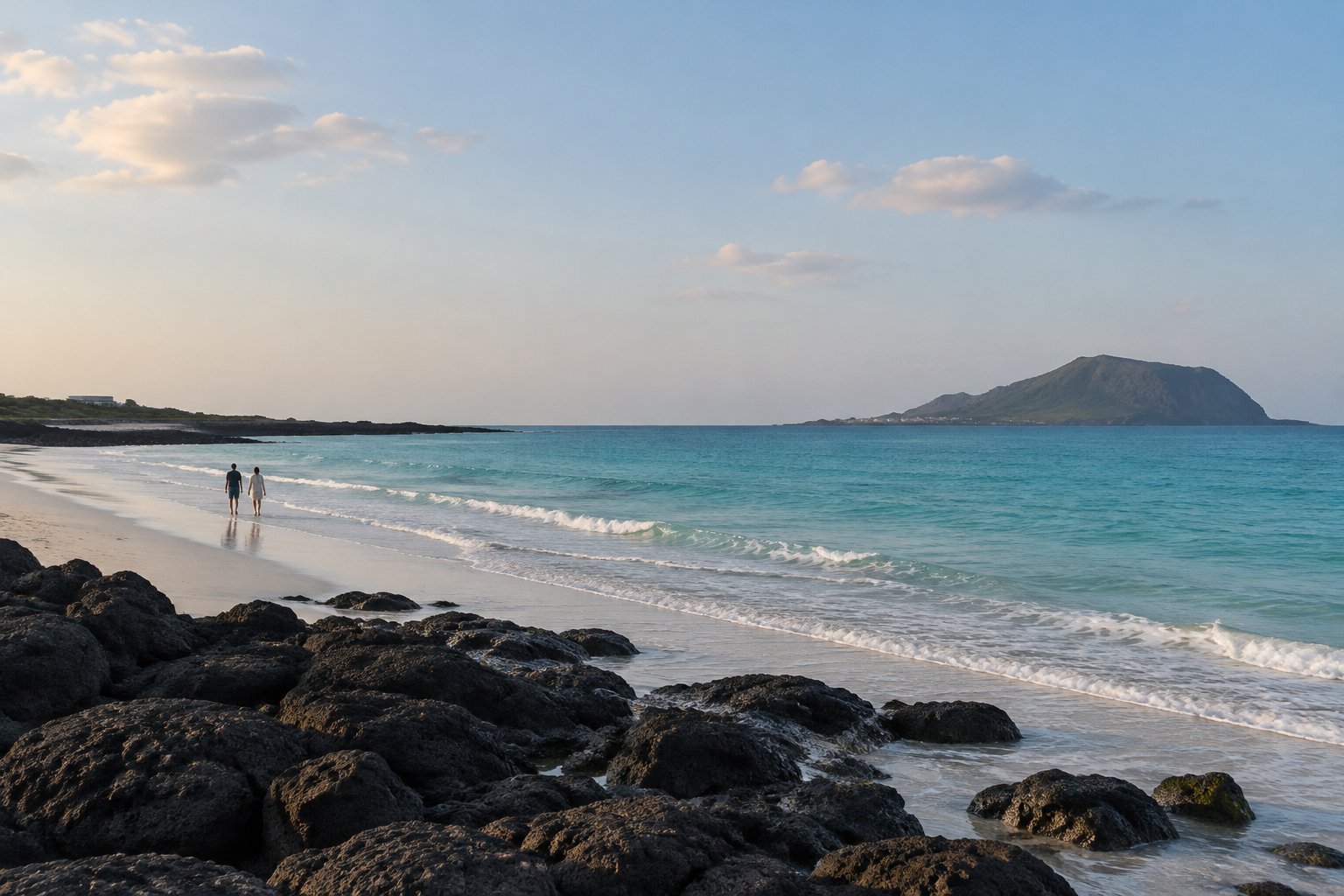
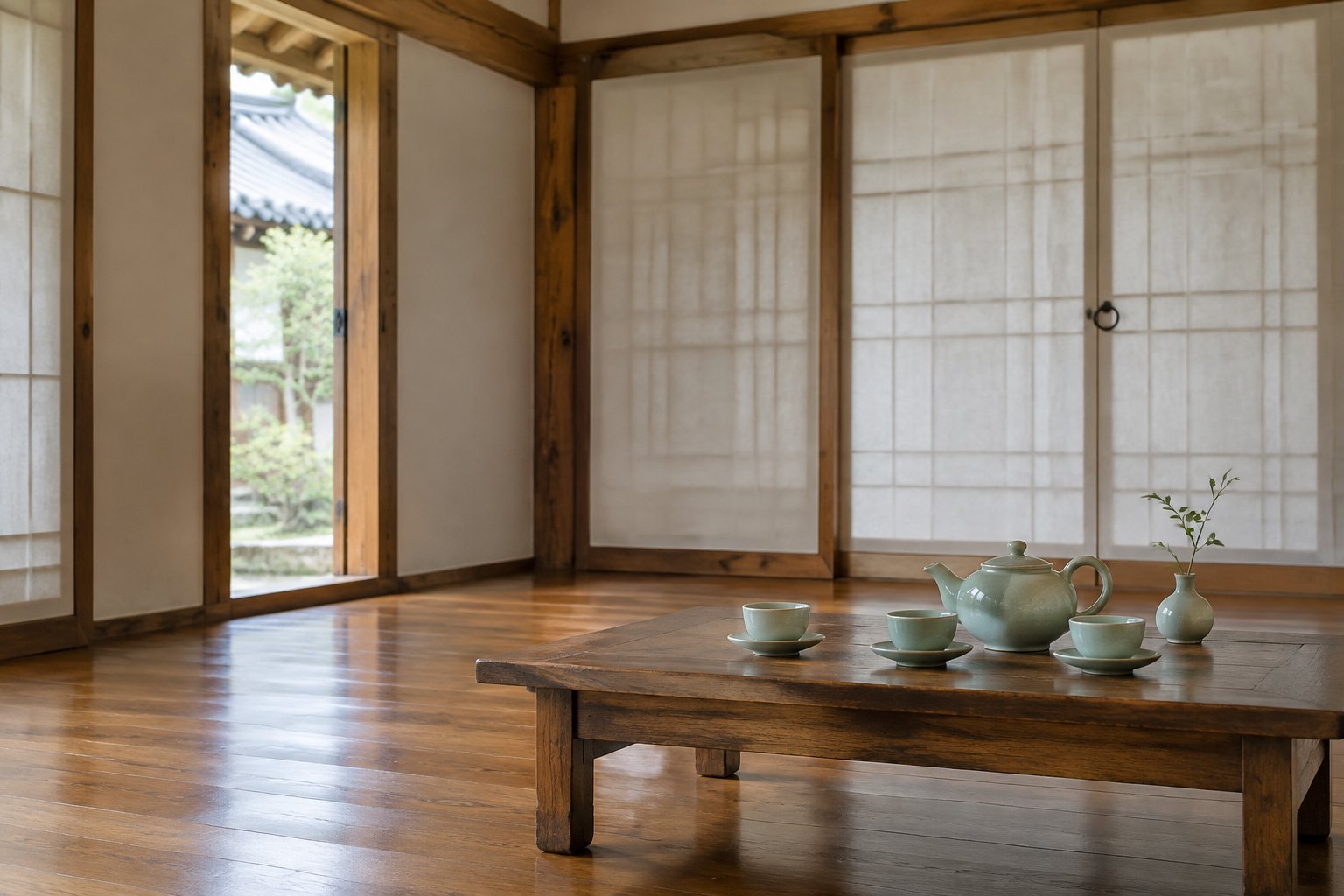
Operations can also be described as data. Save a look as JSON and apply it to a whole folder with apply_from_dict() (or apply_from_json()). Here is a warm, matte preset on four different photos.
Download the originals (1536 x 1024) to run the snippets yourself. They were generated for these docs with OpenAI's gpt-image-2.5 model; the prompts are in scripts/generate_photos.py.